
How to raise a RiLiFi support case
A support case is the fastest way to reach our team. You raise it from inside your account, so it reaches us already linked to you. Cases are open to every plan, and we usually answer within 24 hours, by email.
Raise a case
- Sign in and open Help & support from the account menu, or press Help in the top bar.
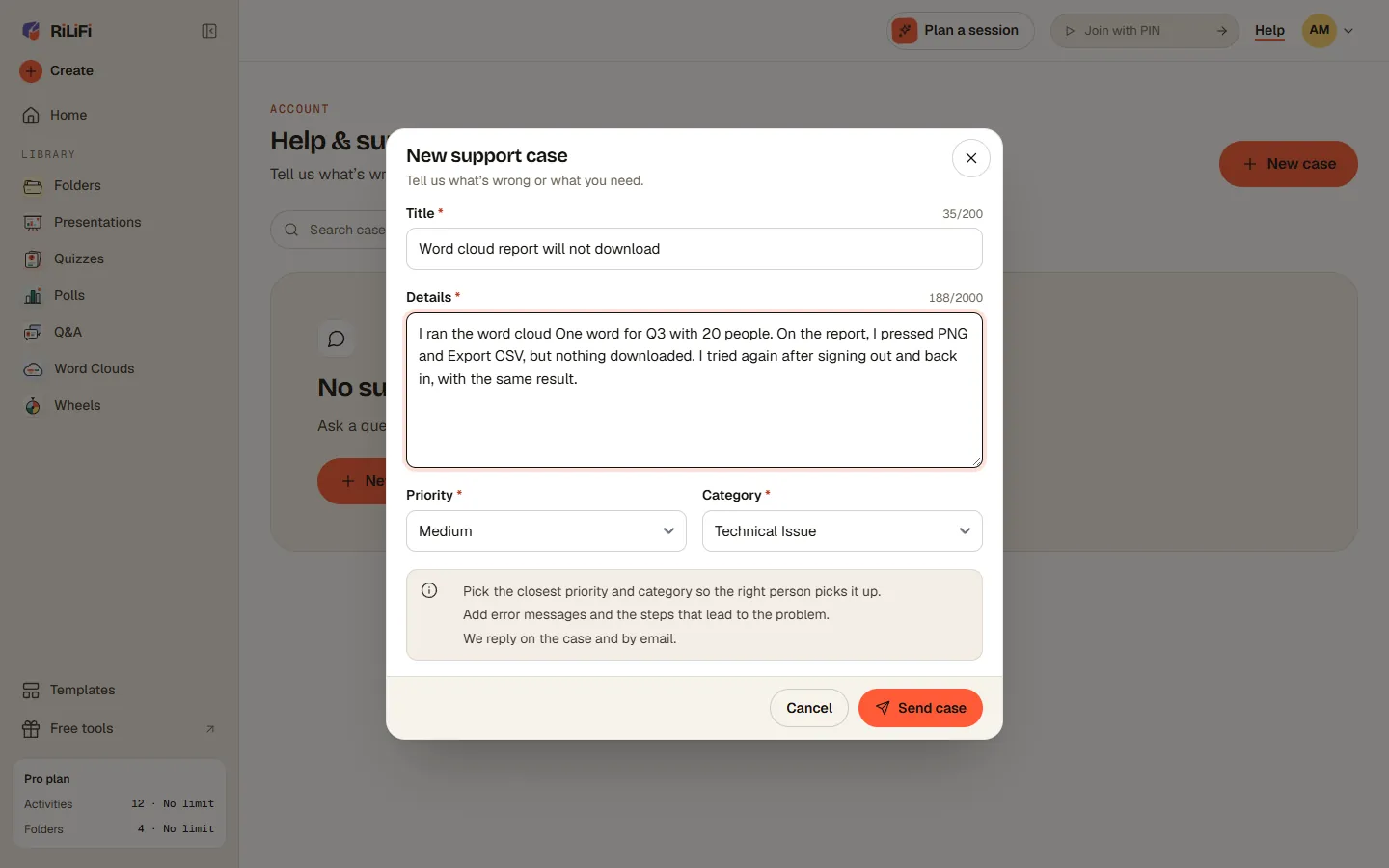
- Press New case.
- In Title, write one line about the problem or request, 3 to 200 characters.
- In Details, write 10 to 2,000 characters: what happened, what you expected, and any error message you saw.
- Pick a Priority and a Category, then press Send case.
Important:Cases accept plain letters A to Z, numbers, spaces and common punctuation. Symbols such as @ : / # & % and accented letters show Contains invalid characters. Describe a page or email address in words instead.
Priority and category
| Field | Options | How to choose |
|---|---|---|
| Priority | Low, Medium, High or Critical | Medium is the default. Save Critical for something blocking you right now, like a live session. |
| Category | Bug, Feature Request, Support, Account Issue, Technical Issue or Other | Support is the default. Pick the closest match so the right person picks it up. You cannot change it later. |
Track, edit and close a case
- Each case shows its status, Open, In-Progress or Closed, and its priority, like Medium priority.
- The line under the title shows the category, the date it opened and the case number. Assigned and Resolved appear once we pick it up and solve it.
- Press Edit case (the pencil) while a case is not closed. Change the title, details or priority and press Save case.
- Press Mark as complete in the edit dialog once you no longer need help. The case closes.
- Press the Closed chip on a case to open it again.
- Search with Search cases by title or description. Cases show newest first, 10 at a time, with Show more.
- Delete case removes a case from your list. It cannot be undone.
Cases that open for you
- When an AI request fails with Sorry, this did not work, press Raise a case in the message. The case opens with the title "AI generation did not work", a reference like AI-123456 and the Technical Issue category.
- If AI is turned off for your account, Raise a case opens a case titled "Please turn AI back on" in the Account Issue category.
- The raise-a-case links on the Subscription page (plans and billing) and on an organization's Billing tab open a case titled "Change my plan" or "Change billing information".
Write a case we can solve fast
- Name the item involved: the presentation, quiz, poll, Q&A, word cloud, wheel or folder.
- List the steps that led to the problem.
- Copy any error message word for word.
- Say when it happened, especially during a live session.
- Cases take text only. If a screenshot would help, say so, and send it when we reply by email.
Common questions
Is RiLiFi support free?
Yes. Every RiLiFi account, Free included, can raise support cases. The pricing page lists the support level for each plan.
How will I know when RiLiFi replies to my case?
Our team replies by email to the address on your RiLiFi account, usually within 24 hours.
Can I attach a file to a RiLiFi support case?
No. Cases are text only. Describe the problem in the details, and send a screenshot by email when we reply if it helps.
Can I still email RiLiFi?
Yes, at hello@rilifi.com. For anything about your account, a support case is faster because it reaches our team already linked to your account.
Was this article helpful?
Screenshots show the RiLiFi app as of 8 Nov 2026, with demo content.
Still stuck? Raise a support case from your account, or email hello@rilifi.com with what you were trying to do.