
Improve a quiz with AI: one question or the whole quiz
The quiz editor has two AI tools. Improve works on the question you have open, for 1 credit. Rewrite with AI works on every question at once, for 5 credits. Both keep your topic, facts and language, and both show you the changes before anything is applied. To write a new quiz with AI, see Generate with AI.
What AI can change
| Choice | What it does | What stays |
|---|---|---|
| Clearer wording | Plain words, with spelling and grammar fixed. | The same question and the same right answers. |
| Make it shorter | A shorter question and shorter answers. | The same meaning and the same right answers. |
| Better wrong answers | Rewrites the wrong answers so each one is believable and about as long as the right one. Never "all of the above". | The question and the right answers. |
| Make it harder | The same fact, asked more precisely, with closer wrong answers. | The right answers stay at the same letters. |
| Make it easier | The same fact, asked more simply, with wrong answers that are clearly wrong. | The right answers stay at the same letters. |
| Add a picture (Add pictures in a rewrite) | Adds a fitting photo from the built-in library to a question with no picture or video. | The photo never shows or names the answer. Replace it any time. |
Improve one question
Your picture or video, time and points stay as they are. If the AI finds nothing to change, you see "The AI kept this question as it is." Add a picture only shows for a question with no picture or video.
- Open the quiz and select the question in the list.
- In the question panel, press Improve next to the question number, like Question 3.
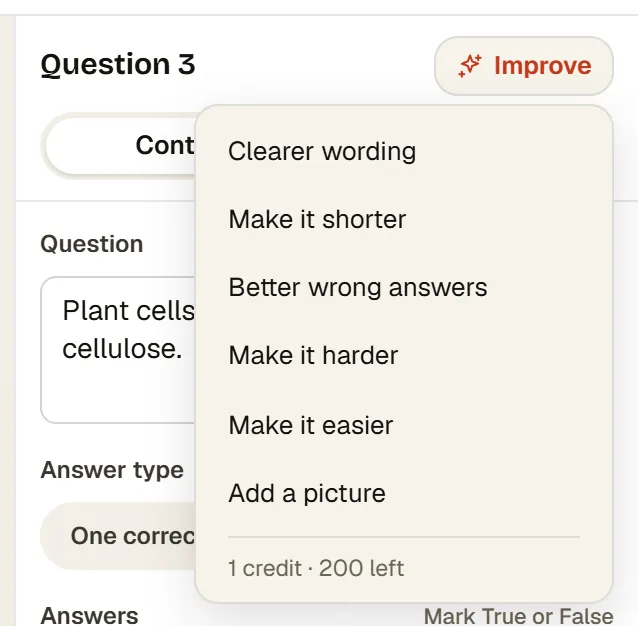
- Pick Clearer wording, Make it shorter, Better wrong answers, Make it harder, Make it easier or Add a picture. The menu shows "1 credit" and how many you have left.
- Wait while the button says Improving…. A window then shows Before and After side by side.
- Press Keep to use the new version, or Discard to leave the question as it was.
Rewrite the whole quiz
- Open the quiz and press Rewrite with AI in the toolbar. On a narrow window it shows as the sparkle icon only.
- Tick one or more choices. Clearer wording starts ticked. Make it harder and Make it easier cannot both be ticked.
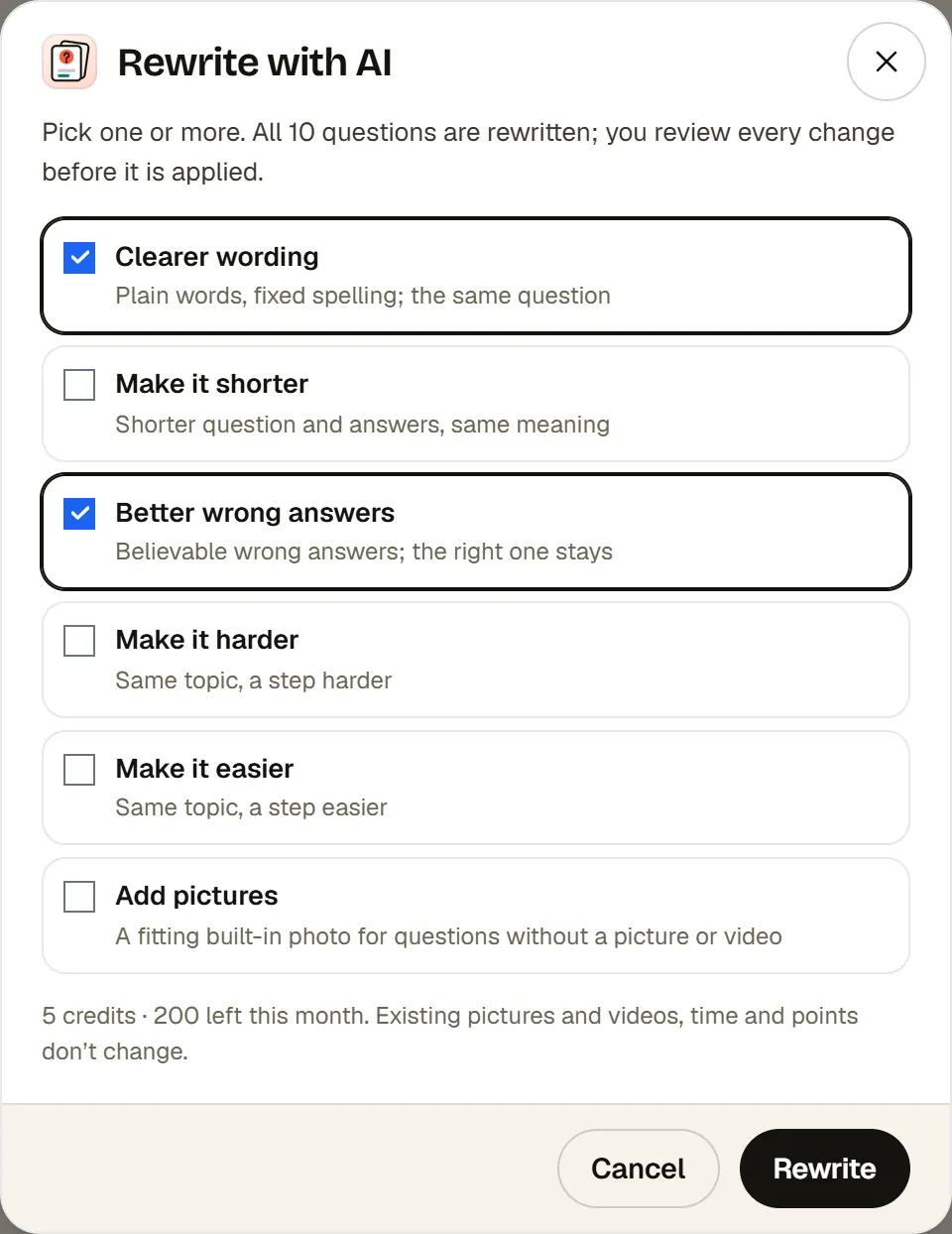
- Check the cost line: "5 credits", how many you have left this month, and "Existing pictures and videos, time and points don't change."
- Press Rewrite. The window shows, for example, "Rewriting 10 questions…" while it works.
- Review the list. The top line says how many changed, like "7 of 10 questions changed". Each changed question shows Before and After, with the right answers marked. The others say No change.
- Untick Keep on any change you do not want.
- Press Apply 7 (the number of changes you kept), or Discard all.
Undo and saving
- The editor saves your quiz on its own. Your latest edits are saved before AI starts. If they are not saved yet, you see "Your latest changes aren't saved yet. Try again in a moment."
- An improved question is its own undo step. Press Undo (Ctrl+Z) to bring the old version back.
- A whole rewrite is one undo step, so one Undo brings back every question it changed.
Important:If the quiz has past sessions, edits change how their reports read. The editor shows this note under the question.
Limits
See pricing for every plan's monthly credits.
| What | Limit | Note |
|---|---|---|
| Improve one question | 1 credit | Questions with 2 to 6 answers. |
| Rewrite with AI | 5 credits | Quizzes of up to 50 questions. |
| Answers per question | 2 to 6 | Questions with 7 or 8 answers are left as they are. |
| Question text | Needed first | Improve asks you to write the question first. A rewrite stops with, for example, "Question 4 has no text yet." |
| Credits left | Enough for the cost | Without enough, the menu says "No AI credits left this month." |
Good to know
- A true or false question keeps its two answers. Only the statement changes, and the right answer follows the new statement.
- The credits are used once the AI finishes, even if you then discard the result. If you ask only for pictures and every question already has a picture or video, nothing changes and no credits are used.
- Only the question text, the answers and which answers are right go to the AI. Pictures and videos are not sent. See AI and your data.
- For the rest of the editor, see Live quiz.
Common questions
Can RiLiFi AI improve just one quiz question?
Does rewriting a quiz with RiLiFi AI change my pictures or timings?
How many credits does Rewrite with AI use in RiLiFi?
Can I undo an AI change to my RiLiFi quiz?
Was this article helpful?
Screenshots show the RiLiFi app as of 8 Nov 2026, with demo content.
Still stuck? Raise a support case from your account, or email hello@rilifi.com with what you were trying to do.