
Find your way around the RiLiFi workspace
The RiLiFi workspace at app.rilifi.com has three parts: a sidebar on the left, a top bar, and the page in the middle. This article names every part, so the steps in the rest of the help centre are easy to follow.
Home for a new host
Until you make your first folder or activity, Home is a starting page. It greets you with Welcome to RiLiFi and your first name.
- How it works: three steps, from picking an activity to the room joining from any phone.
- Make your first quiz, plus Plan a session when AI is on, or Create a folder when it is off.
- Make something new: a tile for each activity, a folder and Plan a session. Under it, a link to start from a template.
- See it in under a minute: a short tour video of RiLiFi.
- Joining someone else's session?: type the PIN in the box at the top right. The join page opens in a new tab, so you stay signed in.
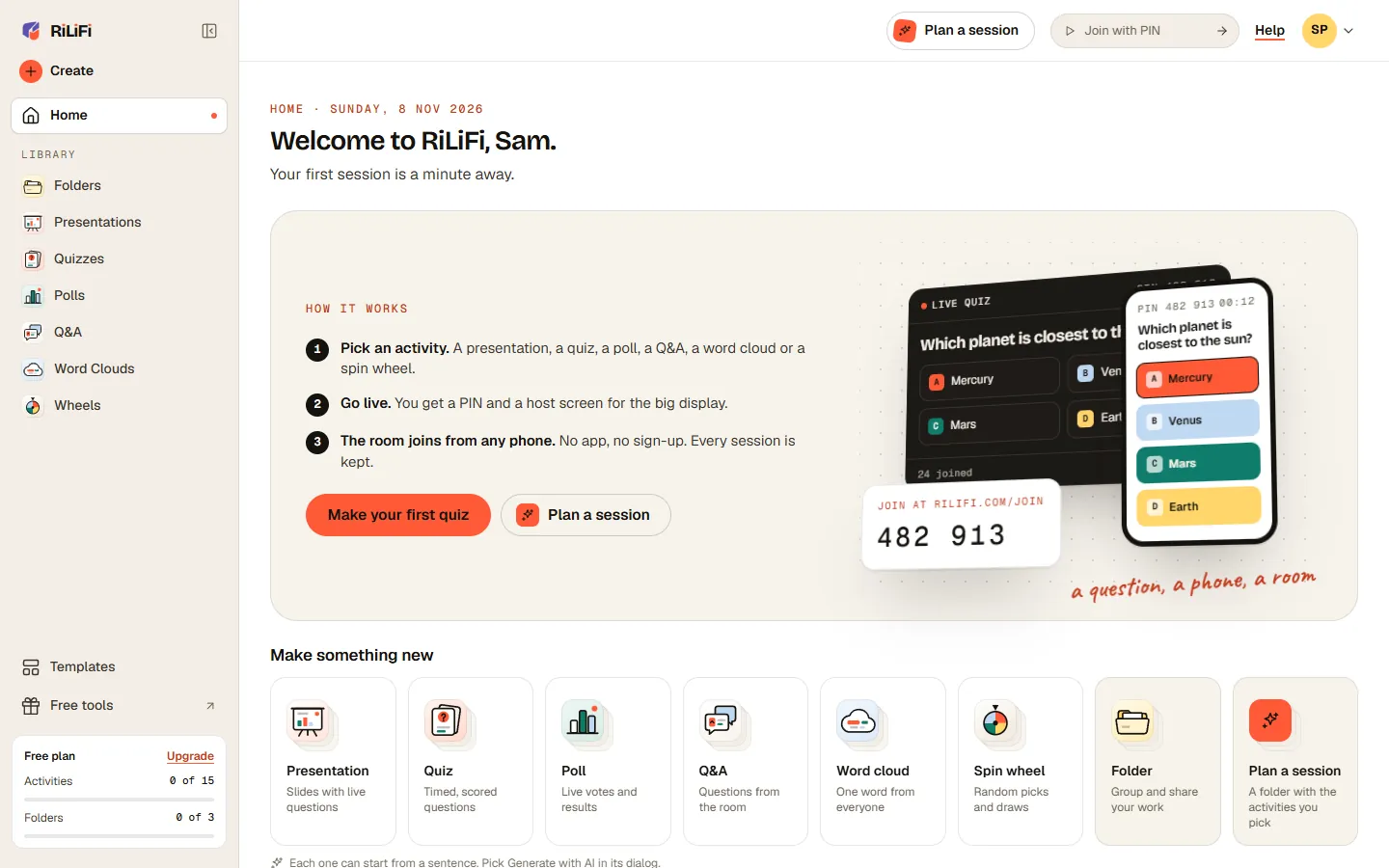
Note:Your Private folder does not count. Home switches to the returning view once you have one folder or activity of your own. There is no step-by-step tour.
Home for a returning host
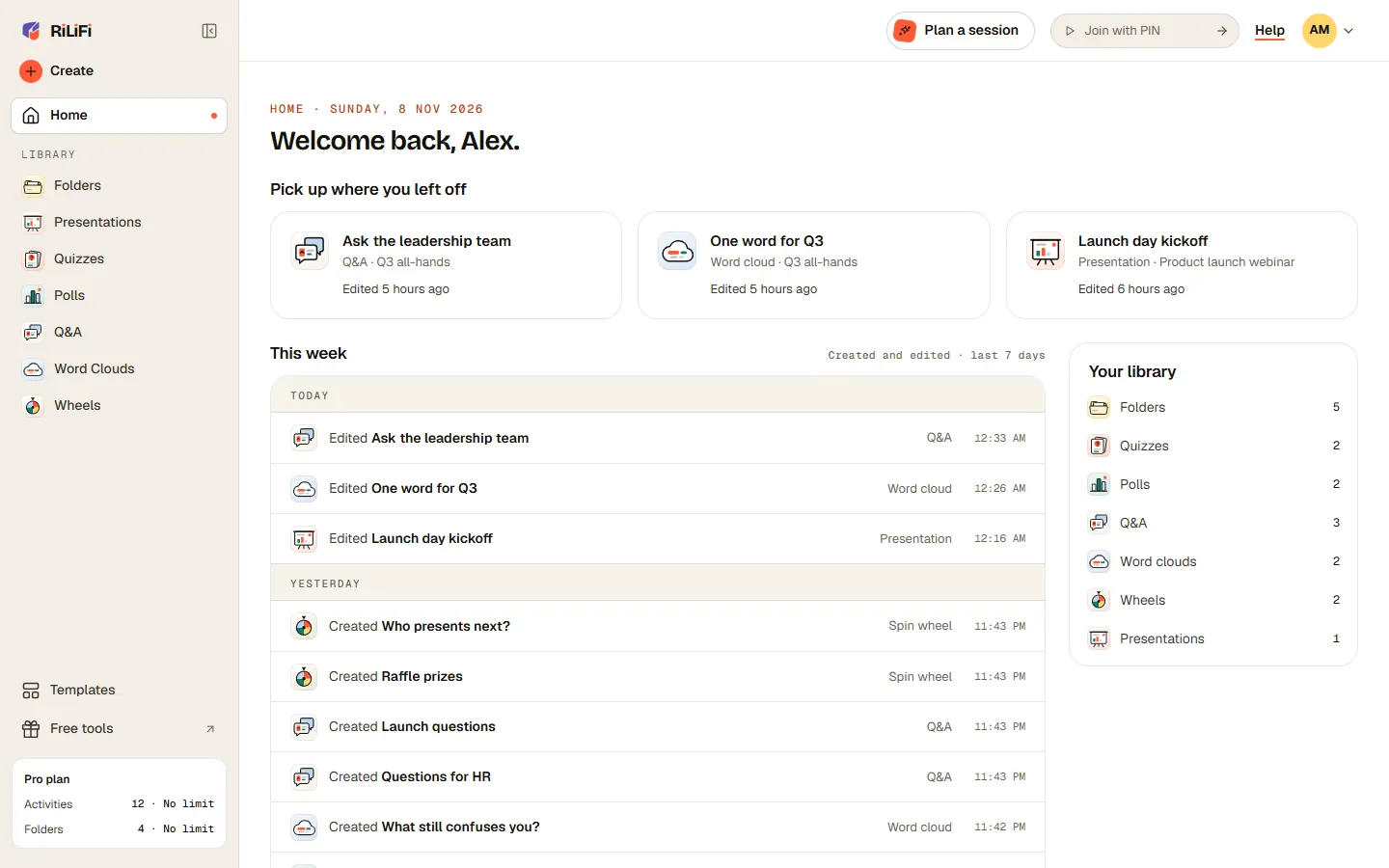
Once you have made something, Home greets you with Welcome back and shows what you need next.
- Live now: shows only while a session is open, with the PIN, Copy join link, Open host screen and Remote. More live sessions list under it.
- Pick up where you left off: the items you worked on last.
- This week: what you created or edited in the last 7 days, grouped by day.
- Your library: how many folders, quizzes, polls, Q&As, word clouds, wheels and presentations you have. Each row opens that list.
The sidebar
Press the panel button next to the logo to shrink the sidebar to icons, and again to bring it back.
- Create at the top opens the Create sheet.
- Home.
- Organization: shows for organization owners and admins, and for an Enterprise buyer who has not set one up yet.
- Library: Folders, Presentations, Quizzes, Polls, Q&A, Word Clouds and Wheels. Q&A and Word Clouds show a Live tag while one is running.
- Templates: ready-made quizzes and presentations to copy.
- Free tools: opens rilifi.com in a new tab. Nothing there is saved to your account.
- The plan meter, at the bottom.
The Create sheet
Press Create to open a sheet titled What are you running?. Pick a tile to open its create dialog. On a folder page, the new item goes into that folder.
| Tile | Hint on the tile | What happens |
|---|---|---|
| Presentation | Slides with live questions | Opens the new presentation dialog. |
| Quiz | Timed, scored questions | Opens the new quiz dialog: start blank or generate with AI. |
| Poll | Live votes and results | Opens the new poll dialog. |
| Q&A | Questions from the room | Opens the new Q&A dialog. |
| Word cloud | One word from everyone | Opens the new word cloud dialog. |
| Spin wheel | Random picks and draws | Opens the new wheel dialog. |
| Plan a session | A folder with the activities you pick | Plans a whole session with AI. Shows only when AI is on. |
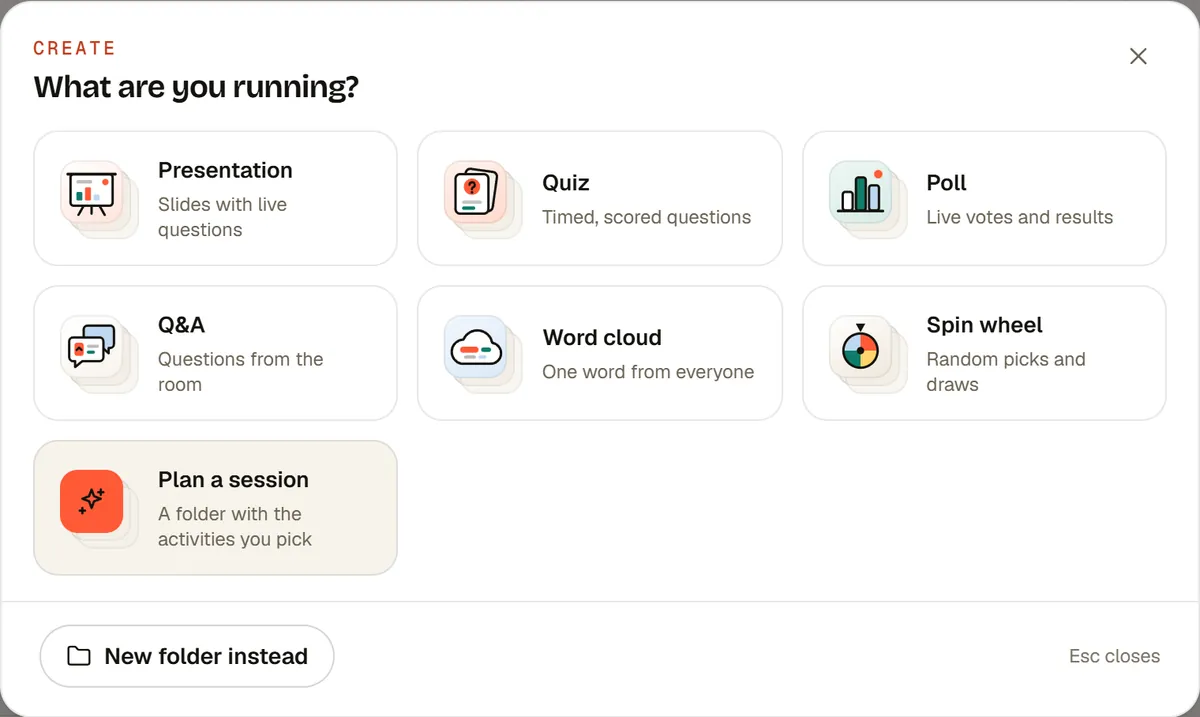
Tip:New folder instead at the bottom of the sheet makes a folder. Esc closes the sheet.
Note:At your plan's limit, tiles are greyed out. Hover one to see the reason, like You have reached your plan's limit for activities.
The top bar
When you reach a plan limit, a strip under the top bar reads You’ve reached a plan limit. with Upgrade plan.
- Plan a session: plans a whole session with AI. It shows when AI is on. See Plan a session with AI.
- Join with PIN: type a 6-character PIN and press the arrow to join someone else's session as a player. It opens in a new tab. On a phone, press Join to open the PIN box.
- Help: opens Help & support, where you raise a case with our team. See Support cases.
- Your initials: the account menu.
The plan meter
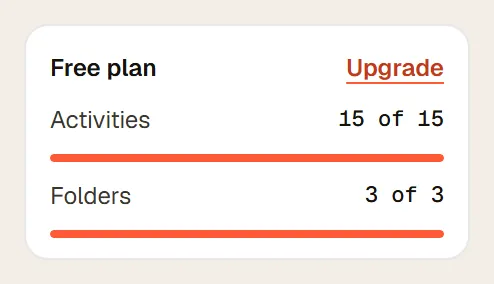
At the bottom of the sidebar, the plan meter shows your plan, like Free plan, with Activities and Folders used, such as 12 of 15. A bar fills as you go. Where your plan has no limit, the line reads No limit. The Upgrade link shows while any limit applies.
Activities count every presentation, quiz, poll, Q&A, word cloud and wheel you own. Items in folders shared with you count on their owner's plan, not yours. See pricing for every plan.
| Limit | Free | Paid plans |
|---|---|---|
| Activities | 15 | 500 on Creator, no limit on Pro and Enterprise |
| Folders | 3 | 50 on Creator, no limit on Pro and Enterprise |
Your Private folder
Every account has a Private folder. It cannot be renamed, shared or deleted. New items go there when you pick no other folder, and template copies go there unless you choose one.
To move an item out of Private, edit it and change its Folder. There is no Move button. See Folders and sharing.
Common questions
Where is the Create button in RiLiFi?
How do I join someone else's RiLiFi session while signed in?
Does RiLiFi have a guided tour?
Can I rename or delete my RiLiFi Private folder?
Was this article helpful?
Screenshots show the RiLiFi app as of 8 Nov 2026, with demo content.
Still stuck? Raise a support case from your account, or email hello@rilifi.com with what you were trying to do.