
Rehearse a session and use the phone remote
Rehearse runs the real host screen with a pretend room, so you can practise every click before anyone joins. The phone remote lets you run a live session from your phone while the big screen follows.
What Rehearse does
- Opens the real host screen, with a pretend room instead of real people.
- Pretend people join, answer, vote or send words, so the leaderboard, chart or cloud fills in as it would live. Quiz scores follow the live rules, speed bonus included.
- Saves nothing and uses none of your live sessions. No report is made.
- Shows PRACTICE where the PIN goes, so no real phone can join.
- Works for quizzes, polls and word clouds. Q&As and spin wheels have no Rehearse. Presentations have their own, covered below.
Rehearse a quiz, poll or word cloud
- Open the activity and save your changes. A poll or word cloud rehearses its saved version.
- Press Rehearse next to Go live. Its hover text reads Practise with a pretend room. Nothing is saved or counted.
- The host screen opens with a small Rehearsal pill in the bottom-left corner.
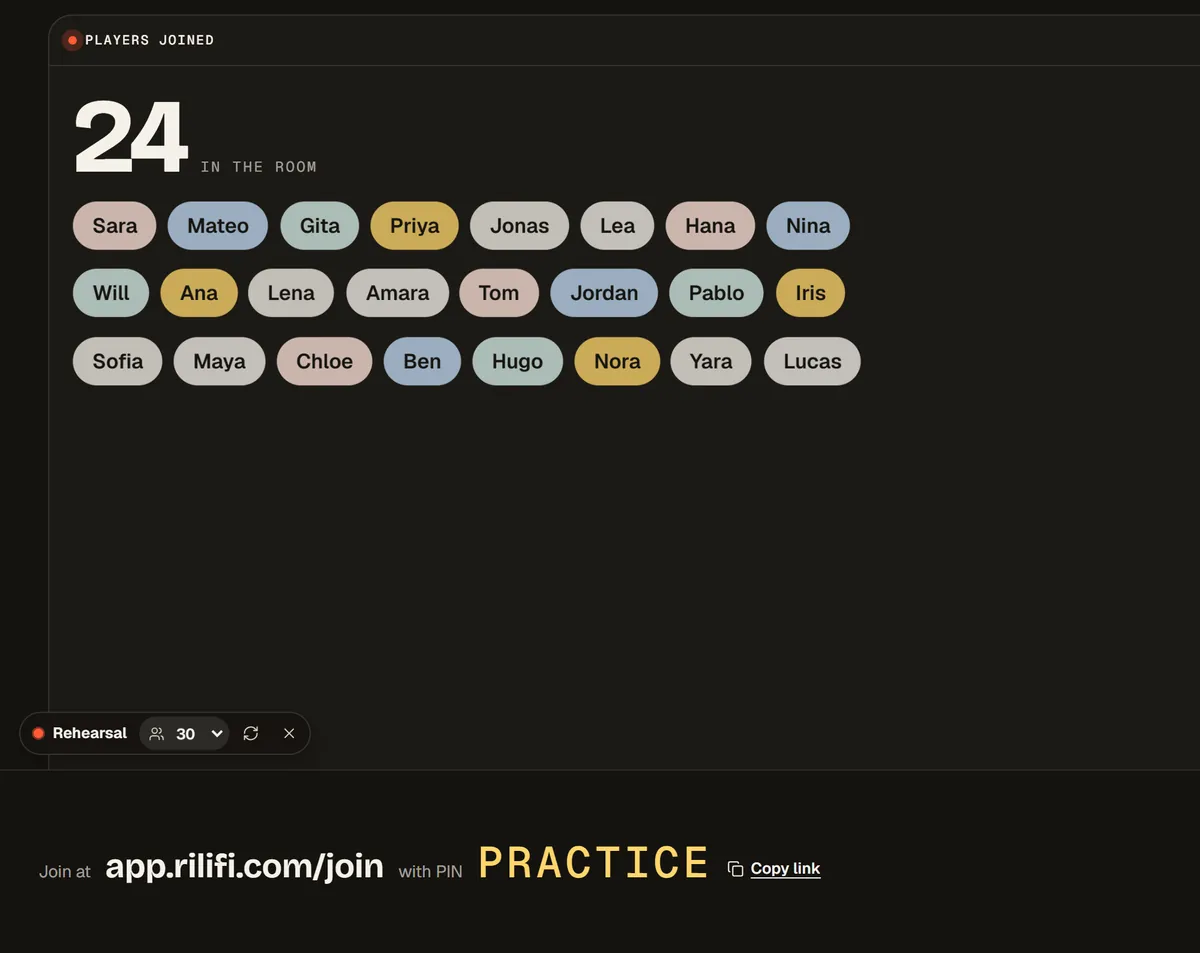
- Pick a room size in the pill: 30 the first time, or 12, 120 or 500. Your browser remembers your pick.
- Run it as you would live: start, reveal, close voting, hide results. The keys work the same. See Keyboard shortcuts.
- Press the refresh button in the pill to Start the rehearsal again, or the cross to End the rehearsal and go back to the activity.
Important:Rehearse checks the same things as Go live. A quiz needs every question ready. A poll needs a question and 2 saved options. A word cloud needs a prompt and saved settings, or the button reads Add a prompt first or Save your changes first.
Rehearse a presentation
In the presentation editor, press Rehearse. Each slide shows as on the big screen, with a pretend room you pick under Room: Empty, 12 people, 30 people, 120 people or 500 people. A clock compares each slide with its planned minutes.
At the end, a summary sets your times against the plan. Use my times as the plan saves your time as each slide's planned minutes. Rehearse again starts over. See Plan and rehearse a presentation.
Run a session from your phone
Copy link and Open in the dialog send the remote to another device, such as a tablet.
- Go live as usual and open the host screen on the computer connected to the big display.
- Press Remote on the host screen, on the live card or on Home. A dialog titled Run it from your phone shows a QR code.
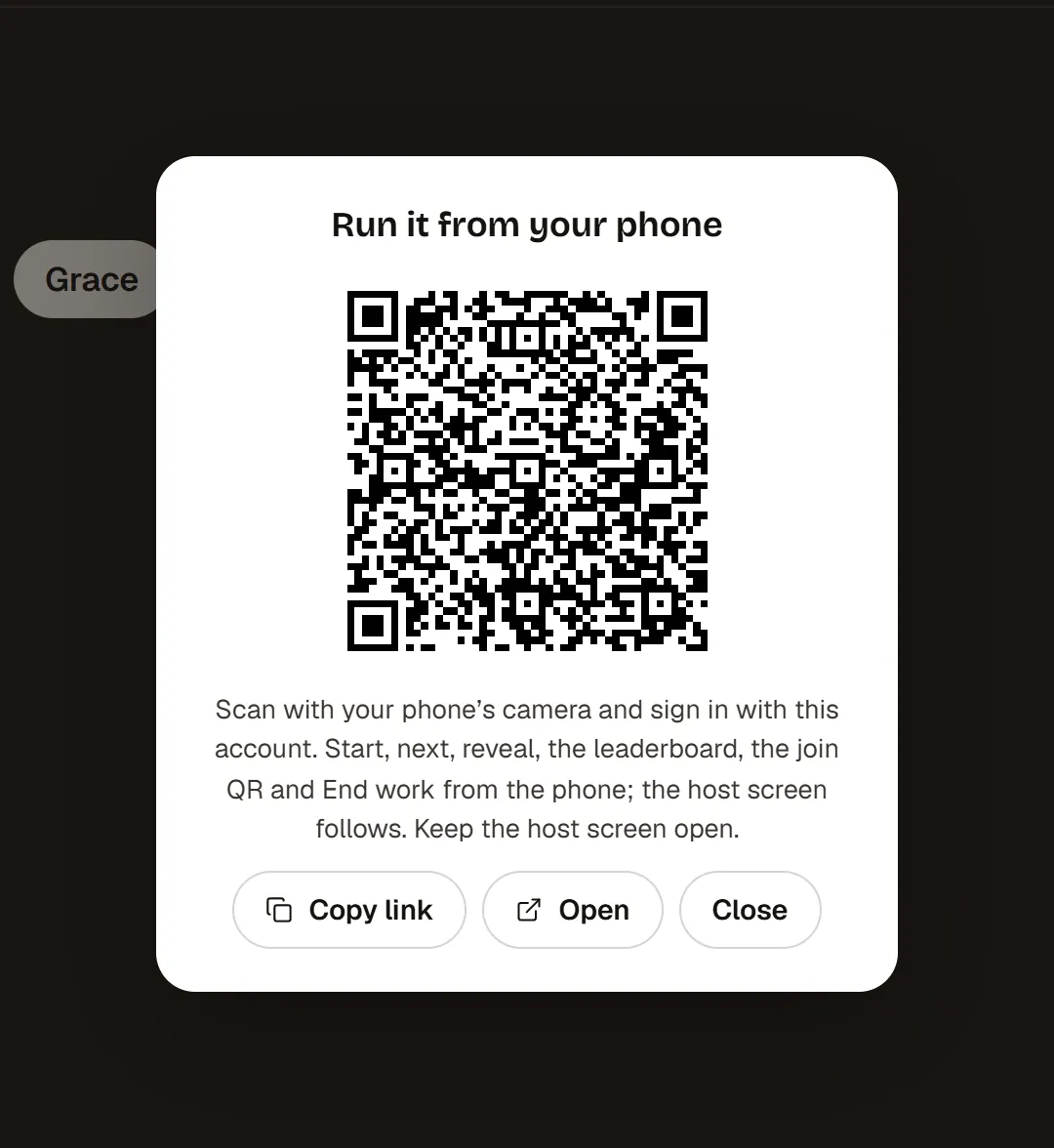
- Scan the code with your phone's camera and sign in with the same RiLiFi account.
- The phone shows the stage, the question, live counts and one big button for whatever comes next. The host screen follows each tap.
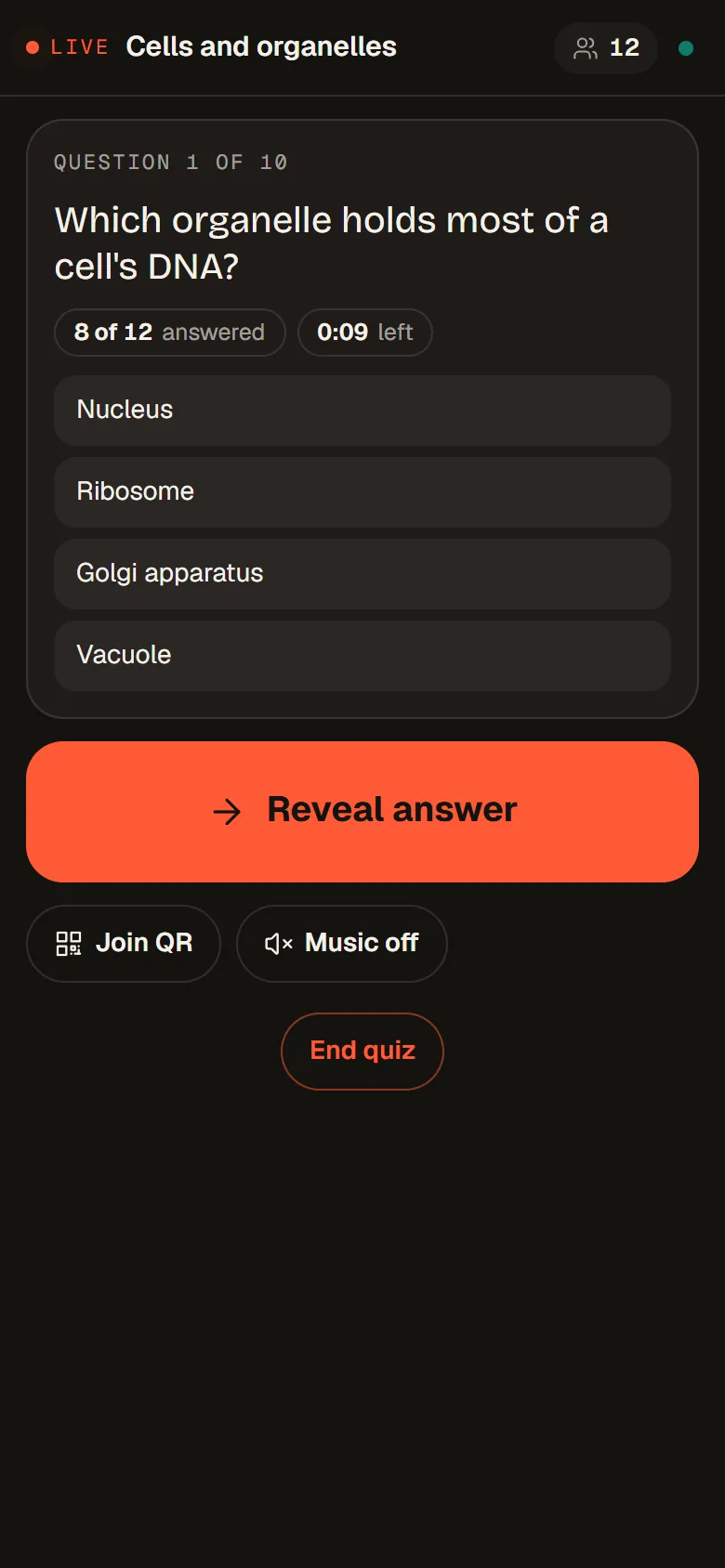
- Keep the host screen open. If it closes, the phone says The host screen is away until you open it again.
What the remote controls
On a word cloud, the phone also lists every word with Find, so you can hide a word from every screen or show it again.
| Activity | From the phone | Open it from |
|---|---|---|
| Quiz | Start, next, reveal, the leaderboard, the join QR and End | Remote on the host screen, the live card or Home |
| Poll | Close voting, the last call, Run it again and the join QR | Remote on the host screen, the live card or Home |
| Word cloud | Pause, show or hide results, hiding words, the join QR and End | Remote on the host screen, the live card or Home |
| Presentation | Next and back, voting, results, the wheel and your notes | The presenter screen. See Present and join a presentation. |
Note:A Q&A has no phone remote. Its live card has Moderate from your phone instead: press Show QR and scan it to open Moderate view on your phone. This works on every plan. See Moderate Q&A questions.
On the Free plan
On Free, Remote shows a lock. The dialog reads Phone remote is on paid plans with See plans, and the host screen works as usual. See pricing for every plan.
If the remote does not connect
- This remote is for the host: sign in on the phone with the account that runs the session.
- Session not found: the link is old. Open the remote again from the host screen.
- This session has ended: go live again, then open the remote from the new session.
- Reconnecting… on the dot at the top: the phone lost its connection and is trying again on its own.
Common questions
Does a RiLiFi rehearsal use one of my sessions?
Can I rehearse a RiLiFi Q&A or spin wheel?
Which RiLiFi plans have the phone remote?
Do I need an app for the RiLiFi phone remote?
Was this article helpful?
Screenshots show the RiLiFi app as of 8 Nov 2026, with demo content.
Still stuck? Raise a support case from your account, or email hello@rilifi.com with what you were trying to do.