
How to host a live quiz in RiLiFi
This page walks through a live quiz from Go live to the podium, and what players see on their phones at each step. To build the quiz first, see How to create a live quiz.
Run the quiz
- Open the quiz and press Go live. You stay on the quiz page, and a live card shows the PIN, a QR code, Copy join link, Open host screen, Remote and End.
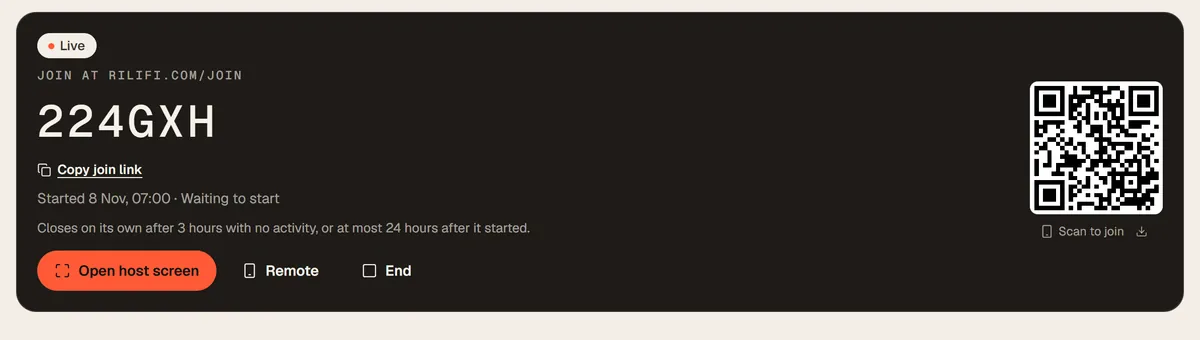
- Press Open host screen and put it on the display the room sees. Press F for full screen.
- Players join in the lobby, and their names appear as they arrive. The bottom bar shows the join address, the PIN, Copy link and a QR code. Click the QR code to show it large.
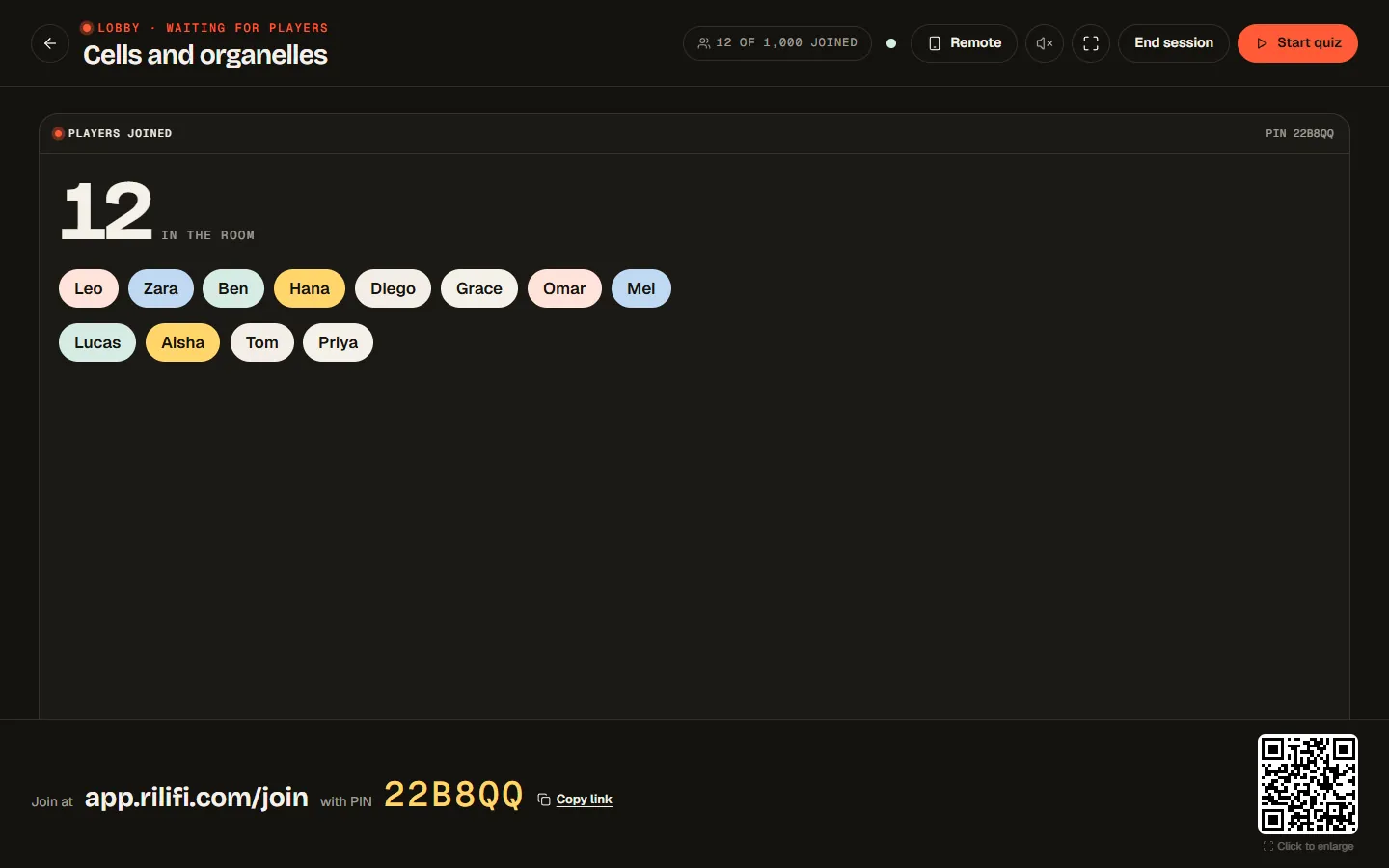
- Press Start quiz. It waits until the first player has joined.
- A Get ready countdown runs 3, 2, 1 before each question. Press Cancel or Esc to stop it.
- The question goes out. The host screen shows a timer ring and Answers in, like 9 / 12. When every player has answered, it reads Everyone's answered and the button nudges you to reveal.
- Press Reveal answer, or let the timer run out. Each answer shows its count and share, the right ones are marked Correct, and a line reads like "9 of 12 players got it right".
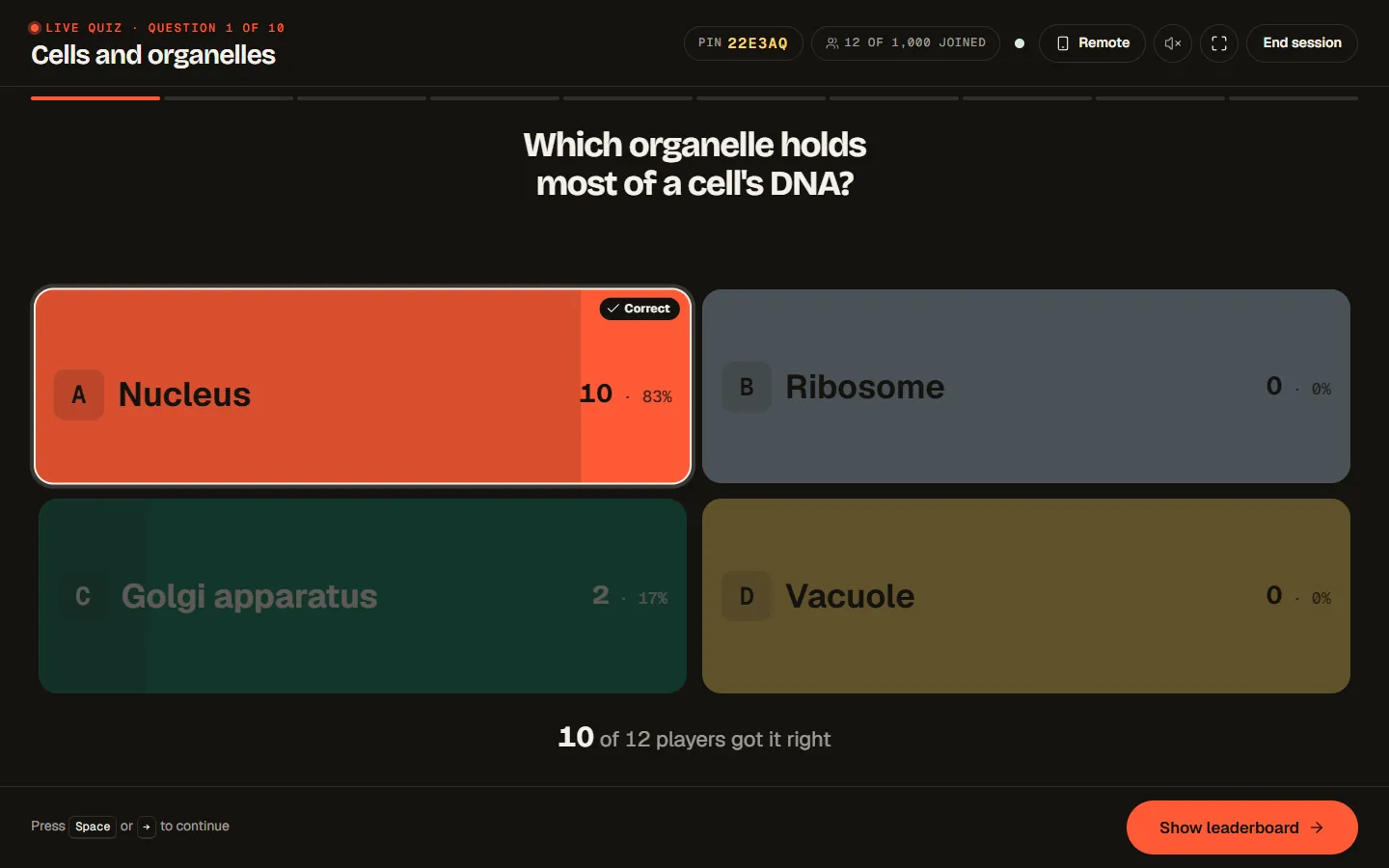
- Press Show leaderboard. The top 10 show with their points, the points they just gained and how many places they moved.
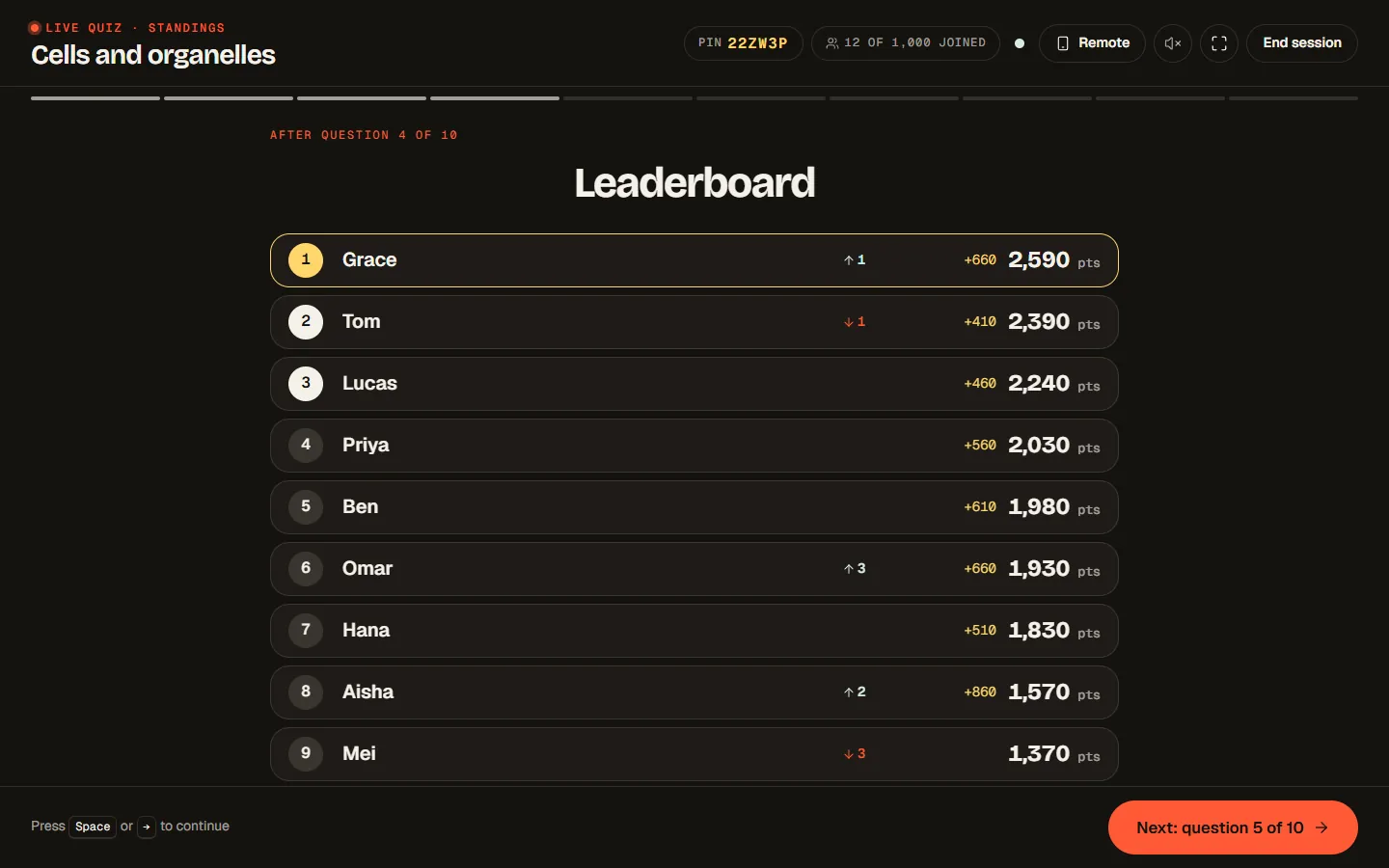
- Press Next: question 5 of 10 (the numbers follow your quiz) and repeat.
- After the last reveal, press Reveal the podium. The top three climb into place, then places 4 to 10 land. Skip jumps to the end, and Replay plays it again.
- Press View report to open this session's report, or Play again to open a new lobby with the same quiz.
What players see on their phones
| Step | Host screen | Phones |
|---|---|---|
| Join | Lobby with names and the PIN | What's your name?, then Join quiz. The name shows on the leaderboard. |
| Lobby | Names arrive | You're in and "Welcome", with the player count. Not you? Change name works once. |
| Countdown | 3, 2, 1 | The phone stays on its last screen. |
| Question | Question, answers, timer, Answers in | The question, a timer bar and coloured answer tiles. One tap locks in an answer. On Multiple questions, tick tiles and press Lock in answer. |
| Answered | Count goes up | Locked in with their pick, how many have answered and the seconds left. Answers cannot be changed. |
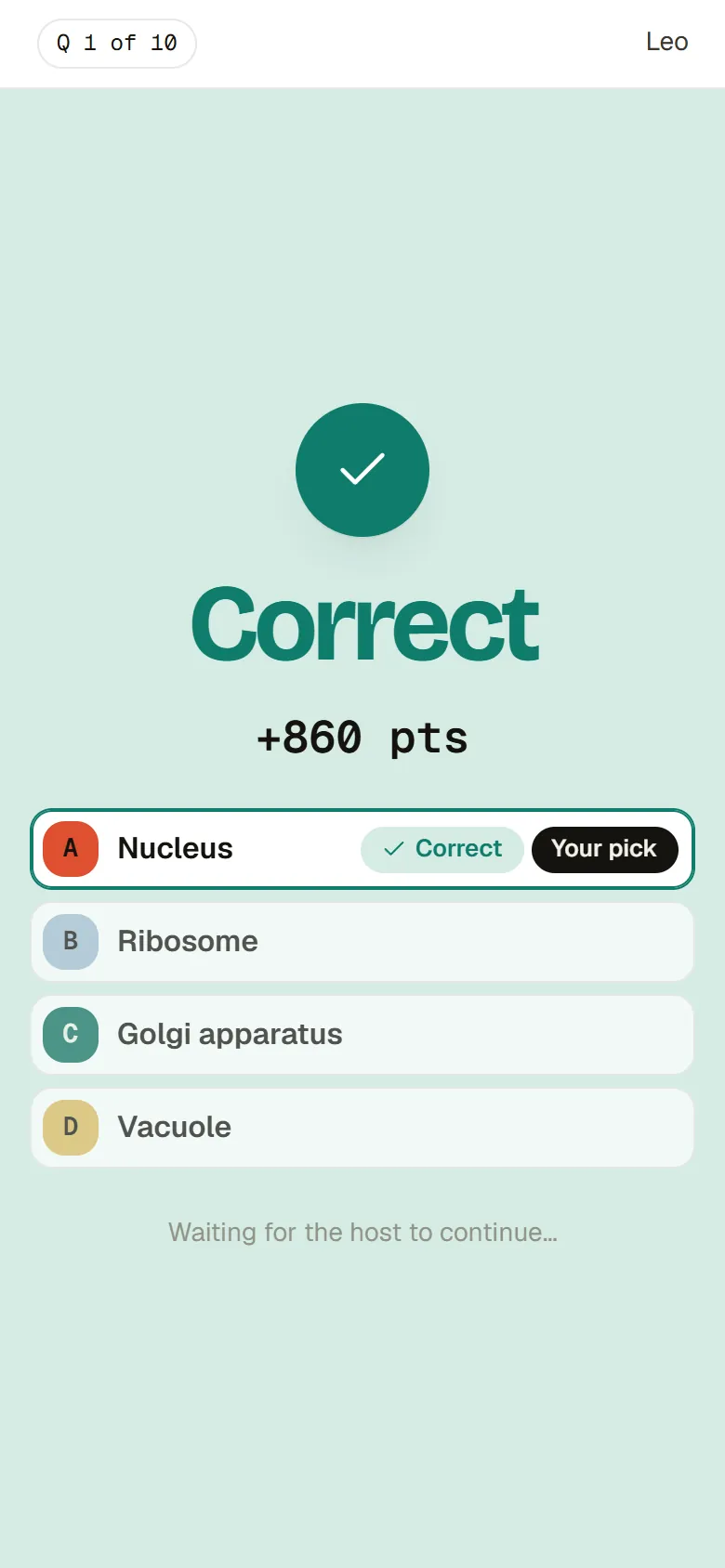
| Reveal | Counts and the right answer | Correct, Partly right or Not quite, the points earned, and the answers with Your pick tagged. No answer shows Time's up. |
| Leaderboard | Top 10 | Your rank, places moved (like "Up 2 places"), their score and the number of players. |
| Podium | Top 3, then places 4 to 10 | Look up (or "Which step?" for the top three) while it plays, then "You placed #4 out of 12 players", the final score, the room average and Leave quiz. |
Keyboard shortcuts on the host screen
Holding a key down never skips two steps. Keys do nothing while you type in a field or a dialog is open.
| Key | Where | What it does |
|---|---|---|
| Space, Right arrow or Page Down | Lobby and every question | Runs the main button: start, reveal, leaderboard, next or podium. A presentation clicker works too. |
| Space or R | Podium | Space skips to the end. R replays it once it has settled. |
| F | Anywhere | Turns full screen on or off. |
| M | Anywhere | Turns music on or off. |
| Esc | Countdown or a dialog | Cancels the countdown, closes the large QR code or the end dialog. |
Late arrivals, dropped phones and full rooms
- The PIN keeps working after you press Start quiz. The host screen shows it at the top, so late arrivals can still join.
- If a phone loses its connection, it shows "Reconnecting to your host…" and picks up where it was, with its score.
- Two players with the same name do not clash: RiLiFi swaps the second for a random name.
- The player count shows against your plan's limit. When the room is full, phones show Limit reached on the join button. See pricing for every plan.
End early or step away
- Press End session, then End quiz. Players are sent out of the session and it cannot restart. The results stay in your session history.
- The back arrow on the lobby and the podium leaves the session running. Reopen it from the live card with Open host screen, or close it there with End.
- A session closes on its own after 3 hours with no activity, or 24 hours after it started.
Run it from your phone
Press Remote and scan the QR code. Your phone can start, go next, reveal, show the leaderboard and the join QR, and end the quiz. After Play again, the phone follows the new session.
Play again and the report
Play again starts a new session, so it counts as one more live session on your plan. Players join the new lobby with the PIN on screen.
View report opens this run's report. See Session history and exports for what it shows and how to download it.
Common questions
Can people join a RiLiFi quiz after it starts?
Can players change their answer in a RiLiFi quiz?
What happens if I leave the RiLiFi quiz host screen?
Can I use a presentation clicker with a RiLiFi quiz?
Was this article helpful?
Screenshots show the RiLiFi app as of 8 Nov 2026, with demo content.
Still stuck? Raise a support case from your account, or email hello@rilifi.com with what you were trying to do.