
Add a picture or video to a quiz question
Each quiz question can show one picture or one YouTube video on the big screen. Players still answer on their phones, so the picture or video is for the room to look at together. This page is part of How to create a live quiz.
Add a picture
- Open the quiz and select the question in the rail.
- On the Content tab, set Media to Picture.
- Press Upload picture and choose a JPEG, PNG or WebP file. The thumbnail appears with Replace and Remove buttons.
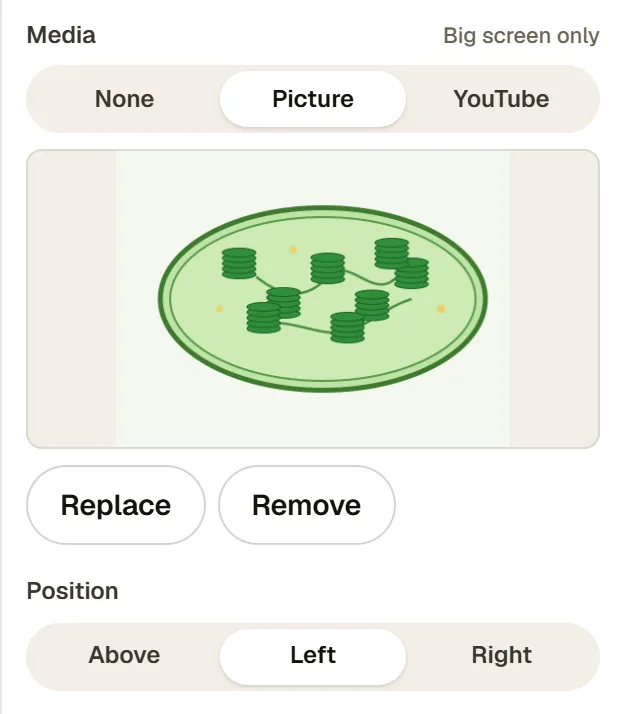
- Under Position, pick Above, Left or Right. The preview in the middle shows the result.
Note:If a file is too big or the wrong type, the upload stops with a message such as "Images can be up to 2 MB." Shrink or convert the file and try again.
Add a YouTube video
RiLiFi accepts links like youtube.com/watch?v=…, youtu.be/…, YouTube Shorts and live links, or the 11-character video ID on its own. Start times can be in seconds (t=90) or minutes and seconds (t=1m30s).
- Select the question and set Media to YouTube.
- Paste the video link into YouTube link. When RiLiFi reads it, you see ✓ Video found.
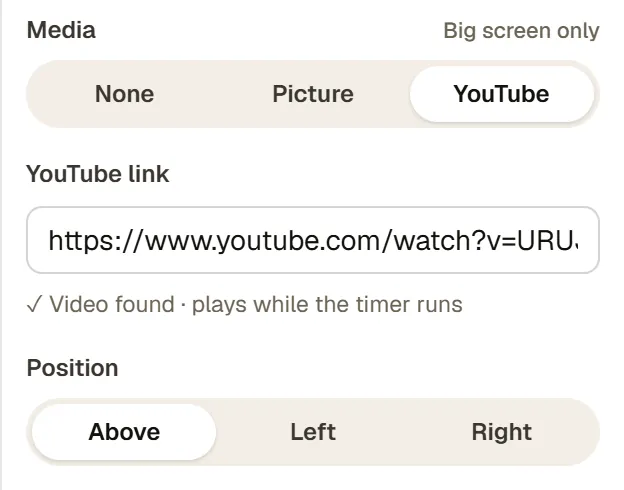
- To start partway through, add a start time to the link, like ?t=30 for 30 seconds. The hint then shows the start, like "starts 0:30".
- Pick a Position, the same as for a picture.
Important:If the link is not a YouTube video, the field says "That is not a YouTube video link." The question then counts as one to fix. Go live stays blocked until you correct the link or set Media back to None.
What the room and the players see
- The host screen shows the picture or video with the question and answers. It stays in place when you reveal the answer, so a video does not reload.
- A video does not start on its own. Press play on the host screen. The question timer runs either way, so give a video question enough time.
- Videos play through YouTube's privacy-enhanced player (youtube-nocookie.com).
- Phones never get the picture or the video. Players see the question and the answer tiles, with "Look at the host screen" above them.
- In the editor, a small picture or play icon on a slide marks questions with media.
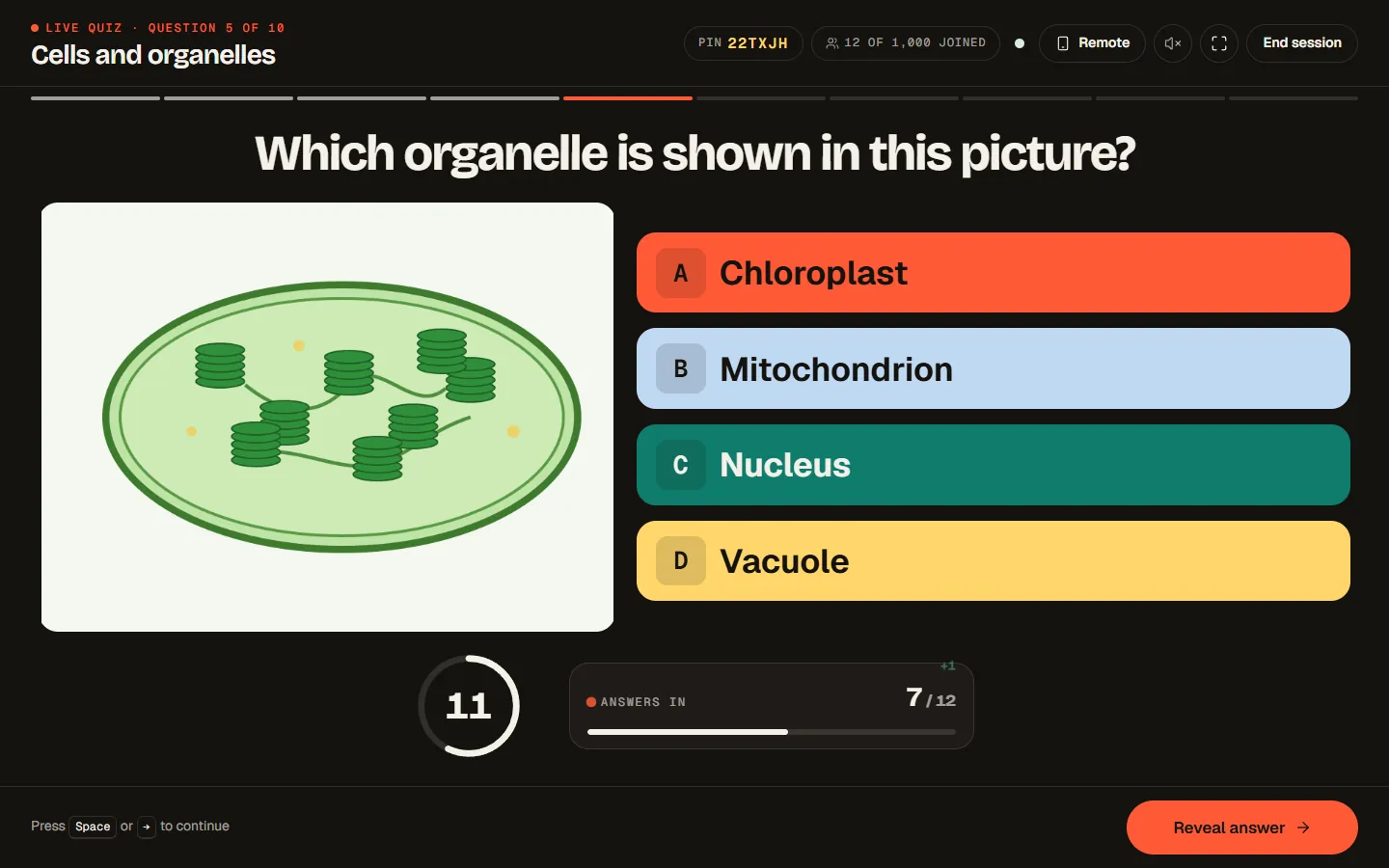
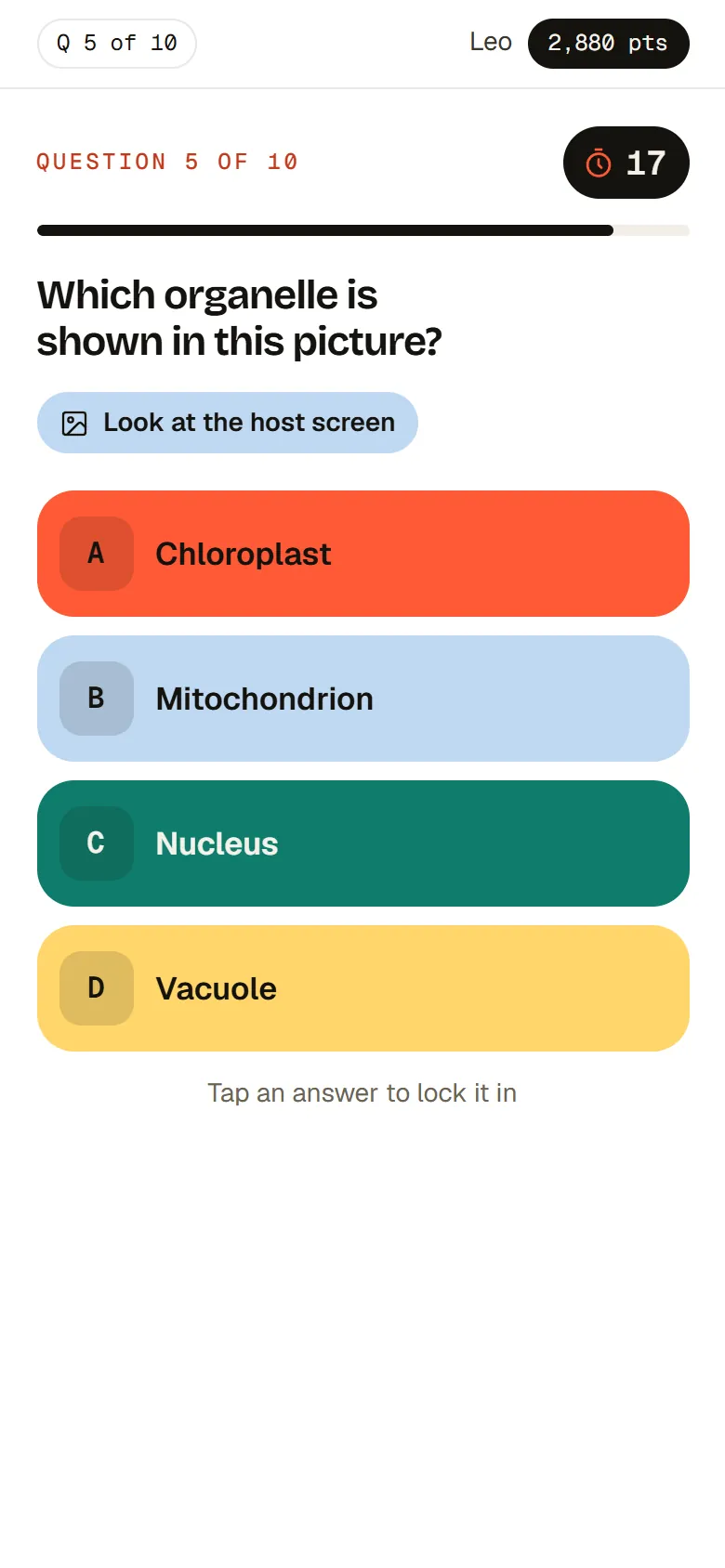
Tip:Write the question so it makes sense next to the picture, such as "Which organelle is marked X?". Players read it on their phones but look up to see the picture.
Replace, remove or switch
- Replace swaps the picture for a new file. Remove takes it away and keeps Media on Picture, ready for another file.
- Set Media to None to show the question without any media.
- A question holds one or the other. The quiz saves the one picked under Media.
- Duplicate on a slide copies the question with its picture or video.
Let AI pick a picture
On a question with Media set to None, open Improve and choose Add a picture. RiLiFi picks a fitting built-in photo, shows the question before and after, and you choose Keep or Discard. It uses 1 AI credit.
To add pictures to many questions at once, press Rewrite with AI and tick Add pictures. It works on questions without a picture or video, costs 5 credits for the whole quiz, and you review each change. See AI credits.
Limits
| Item | Limit | Notes |
|---|---|---|
| File types | JPEG, PNG or WebP | RiLiFi checks the file itself, not just its name. |
| File size | Up to 2 MB | Per picture. |
| Picture size | Up to 4096 pixels on each side | Width and height both count. |
| Pictures per quiz | Up to 300 | Counts every picture uploaded to the quiz. |
| Media per question | One picture or one YouTube video | Not both. |
| Video start time | Up to 24 hours into the video | Set with ?t= in the link. |
Common questions
Do players see RiLiFi quiz pictures on their phones?
What picture files can I add to a RiLiFi quiz?
Does a YouTube video in a RiLiFi quiz play on its own?
Can I start a YouTube video at a set time in a RiLiFi quiz?
Was this article helpful?
Screenshots show the RiLiFi app as of 8 Nov 2026, with demo content.
Still stuck? Raise a support case from your account, or email hello@rilifi.com with what you were trying to do.