
Change a presentation theme and add your brand kit
The theme sets the colours and type of every slide and of the phones in the room. Your own colours and logo, saved as a brand kit you can reuse, are on Creator, Pro and Enterprise.
Pick a theme
- Press the theme button in the top bar. It shows a colour dot and the theme’s name.
- Under Theme, pick RiLiFi (white slides, ink text), Ink (dark slides, light text), Sunset or Custom.
- Optional: add a Background picture for every slide and set Fade picture from 0 to 80%.
- Leave Tint built-in photos on to give RiLiFi’s own photos the theme’s colours, or turn it off to show them as they are.
Note:A deck may still use an older look, such as Coral, Ocean or Forest. It still shows in the menu, with Tidy colours: RiLiFi and Ink only to move the deck to the current themes in one click. Undo brings the old colours back.
Use your own colours
- Pick Custom in the theme menu.
- Pick a dot: Background, Text or Accent.
- Type a colour code such as #1D3557, press Paste for a copied code, or open the colour picker.
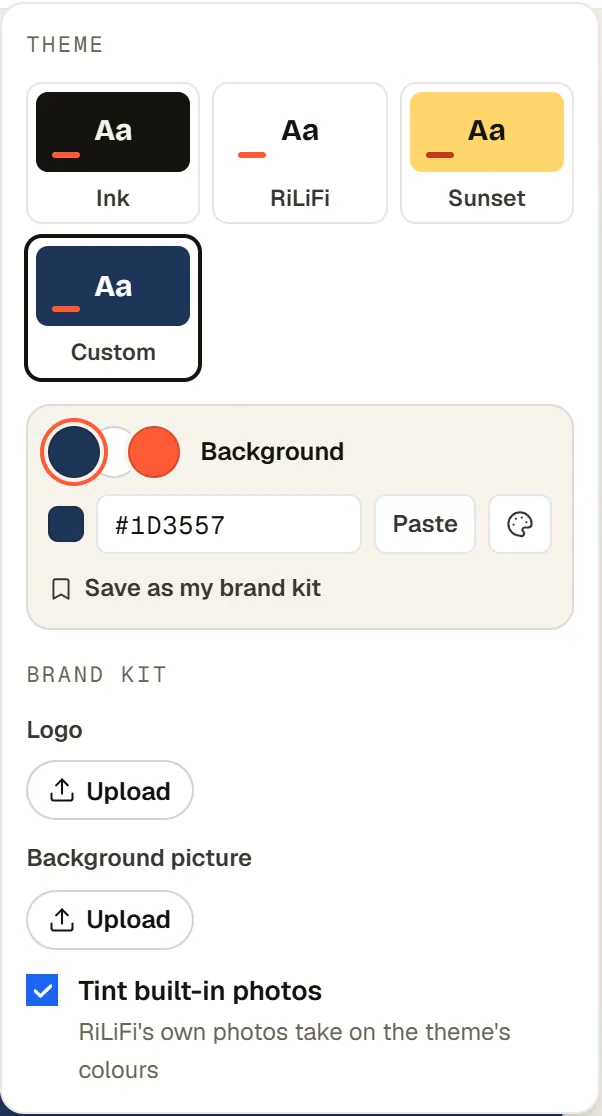
- Repeat for the other two dots. When a new background makes the text hard to read, RiLiFi switches the text to white or ink for you.
Add your logo
- In the theme menu, under Brand kit, upload a Logo.
- Set Logo size from 40 to 160%.
- Pick a position: Top left, Top right or Bottom right. The logo shows on every slide and on the phones in the room.
Save a brand kit for every deck
- With your colours and logo set, press Save as my brand kit. Later changes need Update my brand kit.
- In any other presentation, open the theme menu and press Use my brand kit. Your saved colours and logo go on that deck in one click.
Note:On Free, Custom and the logo show a lock. See pricing for every plan.
Give one slide its own background
- Select the slide and open the Design tab. For the rest of that tab, see Create an interactive presentation.
- Under Slide background, pick Theme (same as the deck), RiLiFi, Ink, Sunset, Contrast or Custom. Contrast is the opposite of the deck’s look, such as Ink on a RiLiFi deck.
- Optional: add a Background picture for this slide only. The other slides keep the theme.
Themes on AI decks
When AI writes a deck, the Look you choose sets its theme: Light gives RiLiFi, Dark gives Ink, and Auto picks one for your topic. You can change the theme afterwards like any other deck. See Create with AI.
Common questions
Can I use my company colours in a RiLiFi presentation?
Does my logo show on phones in RiLiFi?
Can I reuse my RiLiFi brand colours on another presentation?
Was this article helpful?
Screenshots show the RiLiFi app as of 8 Nov 2026, with demo content.
Still stuck? Raise a support case from your account, or email hello@rilifi.com with what you were trying to do.