
Plan the timing and rehearse a presentation
The Flow view shows the whole talk at once: what is on the big screen, what phones show, what you say and how long each slide takes. Rehearse then runs it with a clock and a pretend audience, without going live.
Open Flow
- In the top bar, switch from Slides to Flow. Each slide becomes a row with On the screen, On phones and Words and timing.
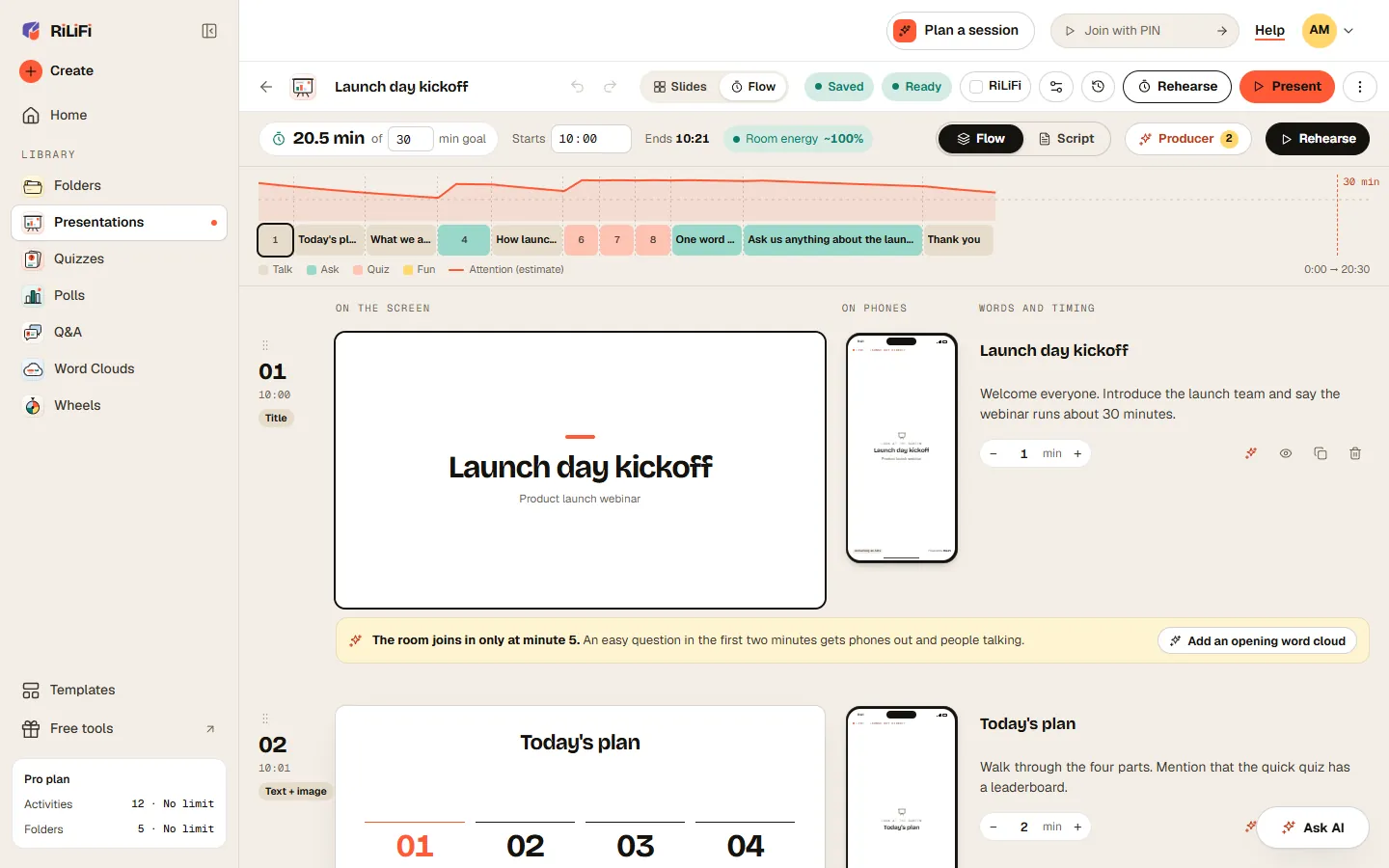
- Type a goal next to the planned total, such as 30 in min goal. A marker on the timeline shows where the goal falls.
- Optional: set Starts to your start time. Each slide then shows its clock time, and the header shows when it Ends.
- In each row, write what you will say in the notes box. Set the minutes with − and + in half-minute steps, or clear the box to use RiLiFi’s estimate for that slide type.
- Press Design on a slide picture to open it in the Slides view.
- The timeline colours each slide as Talk, Ask, Quiz or Fun. The line above it is an estimate of the room’s attention, not a measurement.
- Room energy is the share of the session where that estimate stays above half attention.
- Add here under a row adds a slide in that place. Script shows only what you say, in bigger type, and Copy script copies every slide’s words and timing as plain text.
- Drag a row by its handle to move the slide. The eye button skips it when you present.
Start from a format
A new deck that still has only its first slide offers Start from a format in Flow: Team meeting, Workshop, Class lesson, Quiz round or Talk with Q&A. Each one is a running order with timing, speaker notes and moments for the room. Fill in the parts in [brackets], then present.
Producer notes
Press Producer to see what a stage producer would point out, sorted as Fix first, Worth a look and Nice to have. Many notes have a fix button. Fixes marked with a sparkle use the Ask AI bar for 1 AI credit each, and Undo reverses them.
- Long stretches of talk with no question for the room.
- Slides with a lot of words on screen, and polls with more than 6 answers.
- Three slides of the same kind in a row, or a quiz with no leaderboard.
- A plan over or under your goal, slides with no speaker notes, and a talk that ends on a question.
- Slides that need something before you can present.
AI helpers in Flow
- The sparkle button in a row offers Write what I say, Make it shorter, Add a poll after it and Add a quiz question after it.
- Add here › Or describe it writes a new slide from a short line, such as “a quick poll on lunch”. Press Make it.
- Each one uses 1 AI credit from your monthly credits. See AI credits.
Rehearse
- Press Rehearse in the top bar or in Flow. The rehearsal opens full screen.
- Pick a Room: Empty, 12 people, 30 people, 120 people or 500 people. A pretend audience joins and answers, so results fill in as they would live.
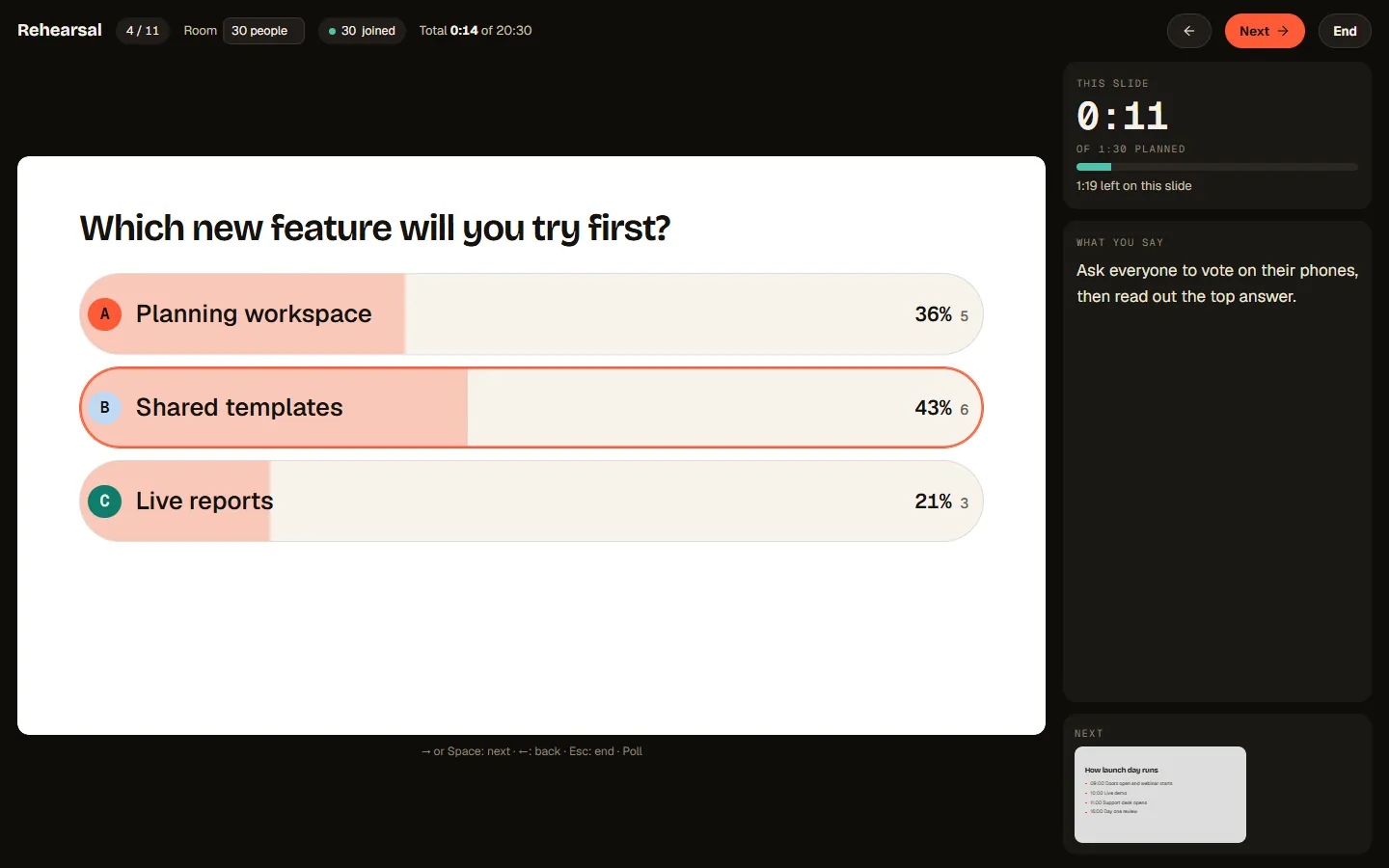
- Move with Next, read your notes under What you say, and see what comes under Next. Press Finish on the last slide, or End at any time.
- The summary shows Plan, You and Difference for each slide. Press Use my times as the plan to keep your times, or Rehearse again.
Note:Nothing in a rehearsal goes live, uses a session or saves answers. Only Use my times as the plan changes the deck. When you are ready, see Present and let the room join.
Limits
| What | Limit | Notes |
|---|---|---|
| Goal | Up to 480 minutes | For the whole presentation. |
| Planned time per slide | 0.5 to 120 minutes | In half-minute steps. |
| What you say | 5,000 characters per slide | The same text as the Notes tab. |
| Pretend room | Up to 500 people | Rehearse only. It does not count towards your plan. |
Common questions
Does rehearsing a RiLiFi presentation use a session?
Where do my Flow notes go in RiLiFi?
Is the RiLiFi room energy figure measured from my audience?
Was this article helpful?
Screenshots show the RiLiFi app as of 8 Nov 2026, with demo content.
Still stuck? Raise a support case from your account, or email hello@rilifi.com with what you were trying to do.