RiLiFi
Start free

Presentation remote

Your phone is the presentation remote.

No clicker to buy, pack or forget. Scan one QR code and your phone becomes the remote for your slides. Back and next, your notes and the next slide are in your hand. So are the polls, quizzes and word clouds in between.

  • Back, next, notes and the next slide
  • Close voting and show results
  • Nothing to install
PresentingSlide 1 of 4

Team kickoff 2027

Join at rilifi.com/join

rilifi.com/joinPIN 482 913

Phone remote · 1/4

Team kickoff 2027

Notes

Welcome everyone. Ask them to scan the QR code.

Up next Which goal should we start with?

tap Next to move the slides

0
clickers, receivers or apps to buy
1
QR code to scan, then sign in on your phone
5,000
characters of notes per slide, on your phone
4
kinds of live session: presentation, quiz, poll, word cloud
The RiLiFi phone remote: the live slide, Back and Next, presenter notes and the next slide
01 · Presentations

A remote for your slides, with your notes on it.

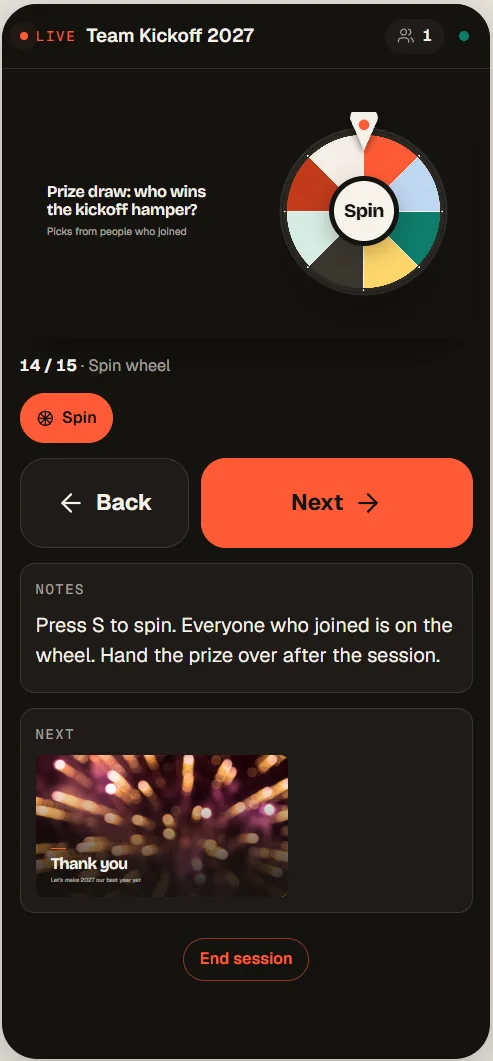
Press Next on your phone and the big screen moves. The phone shows the slide on screen, your notes for it and a preview of the next one. On a poll or quiz slide it also shows how many people have answered. Close voting, show the results or spin the wheel without walking back to the laptop.

  • Back and nextTwo big buttons. The presenter screen follows each tap.
  • Notes and the next slideUp to 5,000 characters of notes per slide, and a preview of what comes next.
  • Voting, results and the wheelClose or reopen voting, show or hide results, and spin a wheel slide.
See interactive presentations →
Phone remote · QuizSaved
  • Question 3 of 108 of 12 answered0:14 left
  • Next stepStart, reveal, leaderboardReveal answer
  • Join QR on the big screen
  • Music
02 · Quiz

Control a live quiz from your phone.

In a presentation there is no start button to look for. Move to a quiz question and its timer starts. Close it early when everyone has answered, then move to a leaderboard slide to show who is ahead. A live quiz on its own has a remote too. The phone shows the question, how many have answered and the time left, with one big button for the next step.

  • The timer starts when you get thereMove to a quiz question and the clock runs. No extra tap.
  • Who has answeredFor example "8 of 12 answered", next to the time left.
  • Start, reveal, leaderboardOn a live quiz, one button runs whatever comes next, up to the podium.
See live quizzes →
Live pollAnonymous129 votes

What should we focus on next quarter?

rilifi.com/joinPIN 482 913
03 · Poll

Run polls from your phone.

On a poll slide, the phone shows how many people have voted. Close voting when the room has spoken. Then show the results on the big screen, or keep them hidden until you are ready. A live poll on its own works the same way, with a last call before voting closes and a button to run it again for the next group.

  • Close votingOn a live poll, a last call counts down first. You can still keep voting open.
  • Show or hide resultsOn a poll slide, you choose when the room sees the chart.
  • Run it againOne tap opens a new session of the same poll.
See live polls →
Word cloudAnonymous52 responses

In one word: how did today feel?

Word cloud: energising (9), clear (7), useful (6), fun (5), honest (5), fast (4), inspiring (4), long (2), practical (3), focused (3), calm (2), bold (2),

rilifi.com/joinPIN 482 913
04 · Word cloud

Run a word cloud from your phone.

Pause answers, show or hide the cloud, and end it when you are done. The phone also lists the words with a search box. If someone sends a word you do not want on screen, find it and hide it from every screen. Show it again with one tap if you change your mind.

  • Pause answersStop new words while you talk about the cloud.
  • Find and hide a wordA hidden word leaves every screen.
  • Show or hide resultsKeep the cloud hidden until the answers are in.
See live word clouds →
Live Q&AAnonymous4 questions
  1. Will the hybrid policy change next year?
  2. How are we measuring the new onboarding?
  3. Can we get the slides after the session?
  4. What is the plan for the Berlin office?
rilifi.com/joinPIN 482 913
05 · Q&A

Moderate Q&A from your phone.

A Q&A works a little differently. It has no Remote button. Its Moderate view opens on your phone from a QR code instead, on every plan. From there you approve questions, put one on the big screen, mark it answered or remove it. Review first, where nothing shows until you approve it, is on Creator, Pro and Enterprise. In a presentation, the question list opens on the presenter screen.

  • Open it by QR codeScan the code in Moderate view and sign in.
  • Approve or rejectWith Review first, each question waits for you.
  • Put a question on screenShow one question on the big screen, then take it off.
See live Q&A →

How it works

How to use your phone as a presentation remote

The remote is a web page, so there is nothing to install.

  1. 01

    Go live on the computer

    Press Present on a presentation, or Go live on a quiz, poll or word cloud, on the computer connected to the big screen.

  2. 02

    Press Remote

    A QR code opens. Copy link sends the remote to another device, such as a tablet.

  3. 03

    Scan and sign in

    Scan the code with your phone camera and sign in with the same RiLiFi account.

  4. 04

    Walk the room

    Keep the presenter screen open on the computer. It follows every tap on your phone.

Clicker or phone

Presentation clicker or phone remote?

A clicker is simple and works with any app on your laptop. The RiLiFi remote does more, but only for presentations and live sessions in RiLiFi.

Presentation clickerRiLiFi phone remote
Back and nextYesYes
Your notesNo. They stay on the laptop.Yes, for each slide
Next slide previewNoYes
Polls, quizzes and the wheelNoClose voting, show results, reveal answers, spin
Laser pointerOn many modelsNo
Slides it works withAny app on the laptopRiLiFi presentations. Bring another deck in as a PDF.
What you needThe clicker, its USB receiver and batteriesYour phone, online, and a Creator, Pro or Enterprise plan

FAQ

Presentation remote questions

Can I use my phone as a presentation clicker?
Yes. In RiLiFi, press Remote on the presenter screen and scan the QR code with your phone. Your phone then moves the slides back and next, and shows your notes and the next slide.
Do I need an app for the RiLiFi phone remote?
No. The remote is a web page. Scan the QR code, sign in with your RiLiFi account in the phone browser, and keep the presenter screen open on the computer.
Which RiLiFi plans include the phone remote?
Creator, Pro and Enterprise. Creator is $7 a month. On the free plan, the Remote button shows a lock and you present from your laptop with the arrow keys.
Does the RiLiFi remote control PowerPoint or Google Slides?
No. It runs presentations in RiLiFi. To use a PowerPoint or Google Slides deck, download it as a PDF and bring it in. Each page becomes a picture slide, and you can add polls and quizzes between them.
Can I start a quiz from my phone?
Yes. In a presentation, move to a quiz question and its timer starts. For a live quiz on its own, the phone shows one button for the next step: start, the next question, reveal the answer or the leaderboard.
Can I moderate a Q&A from my phone?
Yes, on every plan. Open the Q&A’s Moderate view on your phone with its QR code. You can approve questions, put one on the big screen and mark it answered. In a presentation, the question list opens on the presenter screen instead.
What happens if my phone loses its connection?
The phone shows Reconnecting… and tries again on its own. The presenter screen keeps running, and the arrow keys on the computer still move the slides.
Does the audience see my notes?
Not from the phone. Your notes and the next-slide preview show on your phone. On the computer, they show only if you open the Notes panel.

Present from your phone

Leave the clicker at home.

The phone remote is on Creator, Pro and Enterprise, from $7 a month. Building and presenting a deck is free for 100 people per session.

Start freeSee pricing

No credit card required