RiLiFi
Start free

Make PowerPoint interactive

Make your PowerPoint interactive.

Keep your PowerPoint, Google Slides, Keynote or Canva deck. Download it as a PDF, bring it into RiLiFi, and add live polls, quizzes, word clouds and Q&A between your slides. Your audience answers on their phones. Free for 100 people per session.

  • PowerPoint, Google Slides, Keynote, Canva
  • PDF up to 50 MB
  • Free for 100 people per session
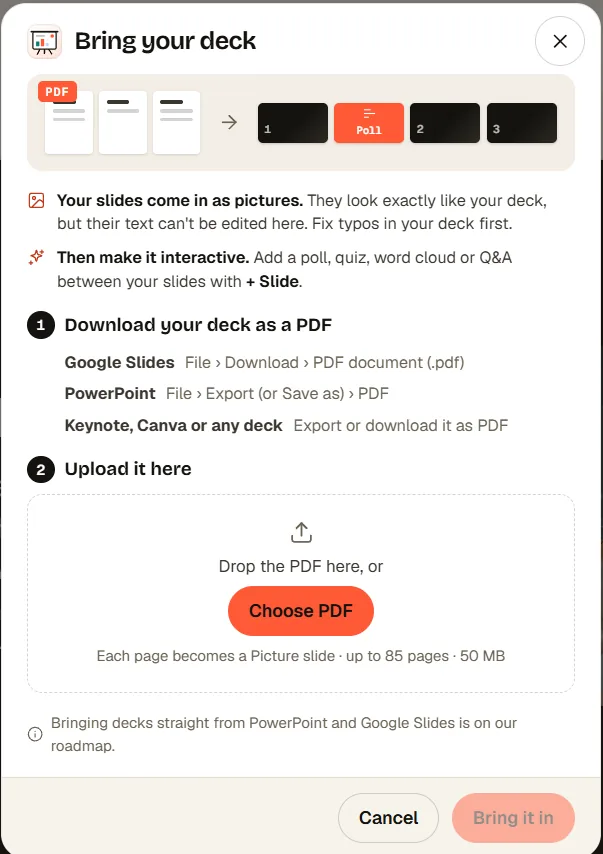
The Bring your deck dialog: download your deck as a PDF, and each page becomes a picture slide
50 MB
largest PDF you can bring in
100
slides per presentation, on every plan
10
interactive slide types to add between pages
0
apps for your audience to install
The Bring your deck dialog: download your deck as a PDF, and each page becomes a picture slide
01

Your slides come in as pictures.

Each page of the PDF becomes a Picture slide, so it looks exactly like your deck: your fonts, your layout, your brand. The text on those slides cannot be edited in RiLiFi, so fix typos in your deck before you download the PDF.

  • Any app that saves a PDFPowerPoint, Google Slides, Keynote, Canva and the rest.
  • Up to 100 slidesThe PDF can be up to 50 MB. Pages fill the presentation up to 100 slides.
  • Pages that are not 16:9Show the whole page, or fill the slide.
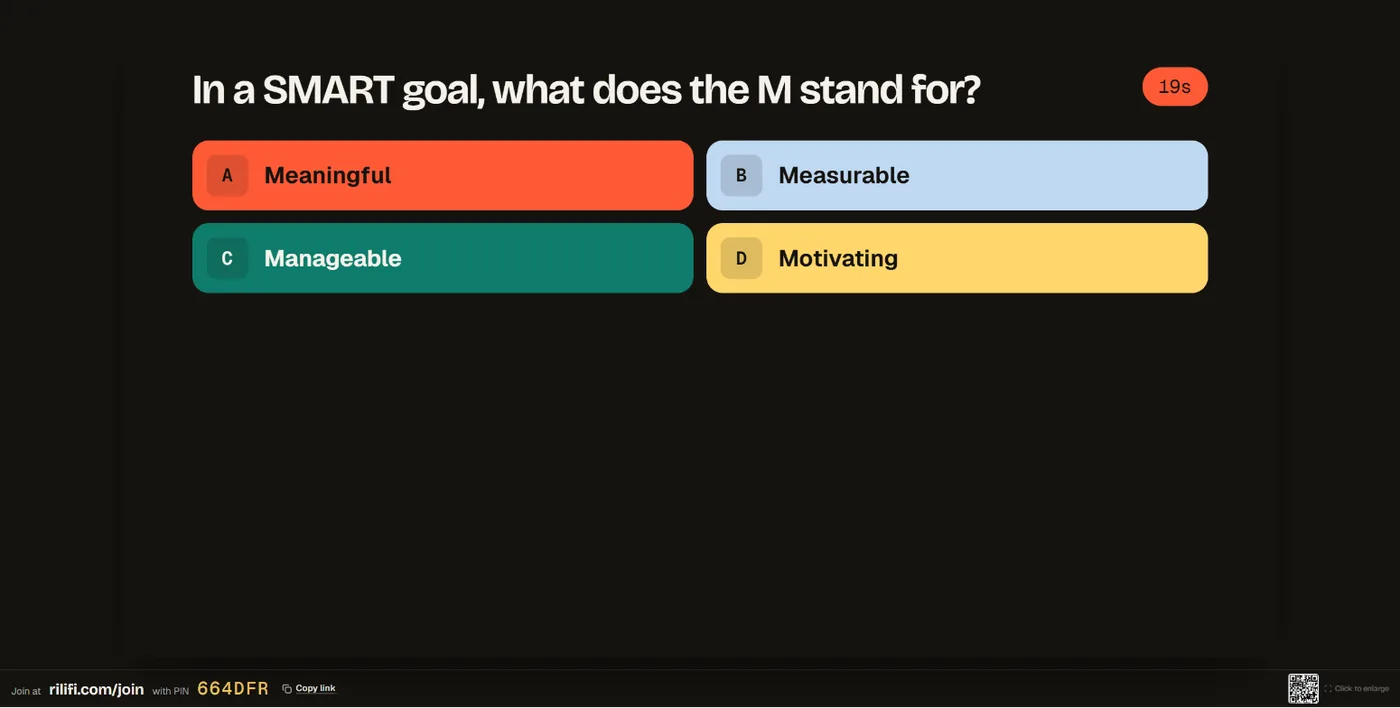
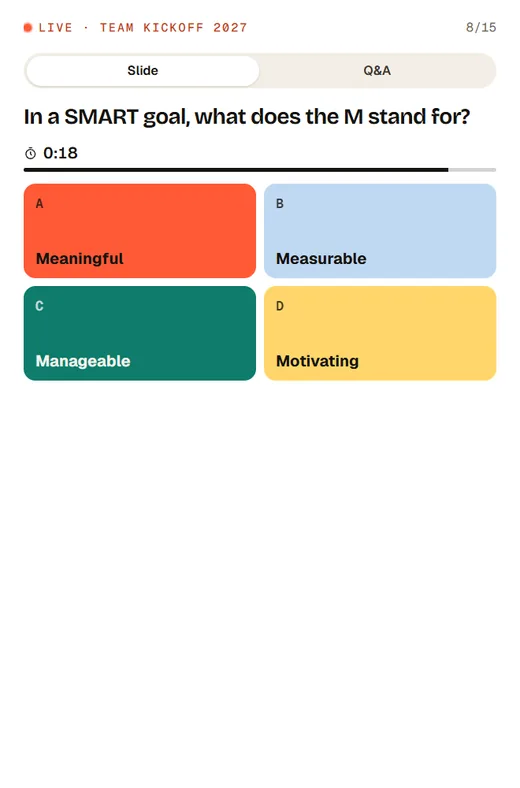
The presenter screen showing a timed quiz question with a team photo above the four answers, and the join link and PIN in the footerA quiz question on an audience member’s phone, with four coloured answers and a timer
02

Add questions between your slides.

Pick + Slide anywhere in the deck and add a poll, a quiz question, a word cloud, open text, a rating scale, ranking, a spin wheel or Q&A. Ask before a section to see what the room thinks, and after it to check what stuck.

  • Before a sectionA poll or word cloud warms the room up.
  • After a sectionA quiz question checks what stuck, with a leaderboard if you like.
  • At the endQ&A lets the room ask and upvote.
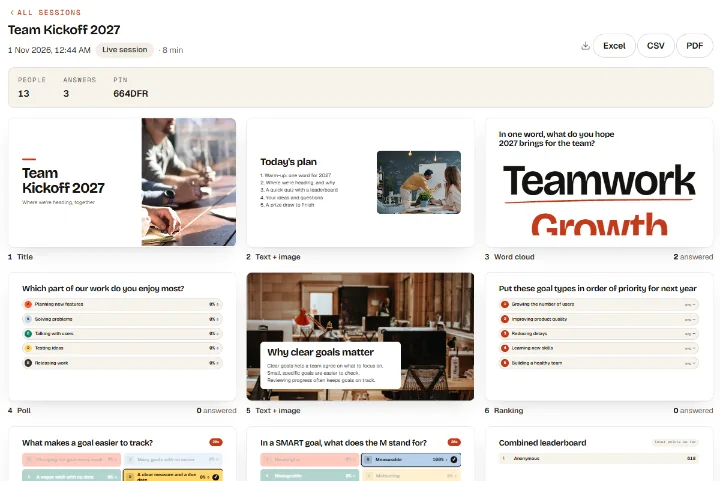
A RiLiFi presentation report: people, answers and every slide as it was shown, with Excel, CSV and PDF downloads
03

Present it like any RiLiFi presentation.

Press Present and the screen shows a PIN, a QR code and the join link. Read your notes on the presenter screen, and on Creator, Pro and Enterprise run the slides from your phone as you walk the room.

  • Phone remoteBack and next, notes and voting from your phone, on Creator, Pro and Enterprise.
  • Presenter notesUp to 5,000 characters per slide. Notes from PowerPoint do not come across, so add them per slide.
  • Results afterwardsEvery session gets a report with each slide’s results.

How to do it

Make a deck interactive in four steps.

  1. 01

    Download it as a PDF

    Google Slides: File › Download › PDF document. PowerPoint: File › Export (or Save as) › PDF. Keynote or Canva: export or download as PDF.

  2. 02

    Bring it in

    Create a presentation, tick “I have slides already”, and drop the PDF in. Each page becomes a slide.

  3. 03

    Add questions

    Use + Slide between pages to add a poll, a quiz question, a word cloud or Q&A.

  4. 04

    Present

    Press Present. The room joins at rilifi.com/join with the PIN and answers on their phones.

Slido for PowerPoint, or a PDF in RiLiFi?

Two ways to add live questions to a deck

Slido runs inside your slide software. RiLiFi brings your slides in as pictures. Pick the one that fits how you present.

Slido in PowerPointRiLiFi with your PDF
How it worksIntegrations for PowerPoint and Google Slides, on every plan including Basic.Download the deck as a PDF, bring it in, and add question slides between the pages. There is no add-in yet.
Slide appsPowerPoint and Google Slides.Any app that saves a PDF: PowerPoint, Google Slides, Keynote, Canva.
Editing your slidesKeep editing in PowerPoint or Google Slides.Edit in your own app, then bring the PDF in again. Slide text cannot be edited in RiLiFi.
Free planBasic: up to 100 participants per slido.100 people per session, every slide type.

Slido facts checked on 1 November 2026 on Slido’s own pages. Slido is a trademark of its owner; RiLiFi is not affiliated with Slido.

FAQ

Questions about making PowerPoint interactive

Can I import a .pptx file directly?
Not yet. Download the deck as a PDF from PowerPoint, Google Slides, Keynote or Canva, and bring the PDF in. Bringing decks straight from PowerPoint and Google Slides is on our roadmap.
Is there a RiLiFi add-in for PowerPoint?
No. You present from RiLiFi itself: your slides come in as pictures, with live polls, quizzes, word clouds and Q&A between them.
Will my animations and transitions work?
No. Each page of the PDF comes in as a still picture, so animations, transitions and embedded videos do not carry over. You can add a YouTube video to a text and image slide in RiLiFi.
Do my PowerPoint speaker notes come across?
No. Add presenter notes to each slide in RiLiFi, up to 5,000 characters per slide. Only you see them, on the presenter screen and the phone remote.
Is RiLiFi a PowerPoint alternative?
For interactive talks, it can be: build the whole presentation in RiLiFi with 13 slide types, or let AI draft it. For detailed design work, keep designing in PowerPoint and bring the deck in as a PDF.
Do people need an app to answer?
No. They open rilifi.com/join on their phone, type the PIN or scan the QR code, and answer in the browser.

Start free

Your deck, with the room in it.

Free for 100 people per session, with every slide type.

Bring your deck, freeSee pricing

No credit card required